Resource Center / Articles / Webflow vs Astro for a B2B marketing site: should you switch?
Webflow vs Astro for a B2B marketing site: should you switch?
 Uros Stancic • Tool Comparisons • 12 min read

TL;DR
Choose Astro if you want to ship faster. You ask an AI agent for the change, including a new page or component, and it builds the code. Choose Webflow if you want managed security and hosting, with a CMS built in.
In the RHMMed migration we measured, Astro's live site has lower blocking time on every page. Mobile performance is mixed: 65 to 82 against Webflow's 60 to 84, and it ships about 10% less JavaScript.
Webflow's Cloud docs list Astro as supported. We haven't tested that split, so run a one-page test before you commit to it.
Astro is not a CMS. If your editors need one, connect a headless CMS such as Sanity or another.
Webflow is one product with the visual builder, hosting and a CMS built in. Astro is a free, MIT-licensed framework for building sites in code. It has no CMS and no host of its own, so a working Astro site pairs it with a headless CMS such as Sanity and a hosting provider.
Short answer: Choose Astro if you want to ship faster. You ask an AI agent for the change, including a new page or component, and it builds the code. Choose Webflow if you want managed security and hosting, with a CMS built in. If you're weighing the move itself, see the website migration guide to Astro.
What is the difference between Webflow and Astro?
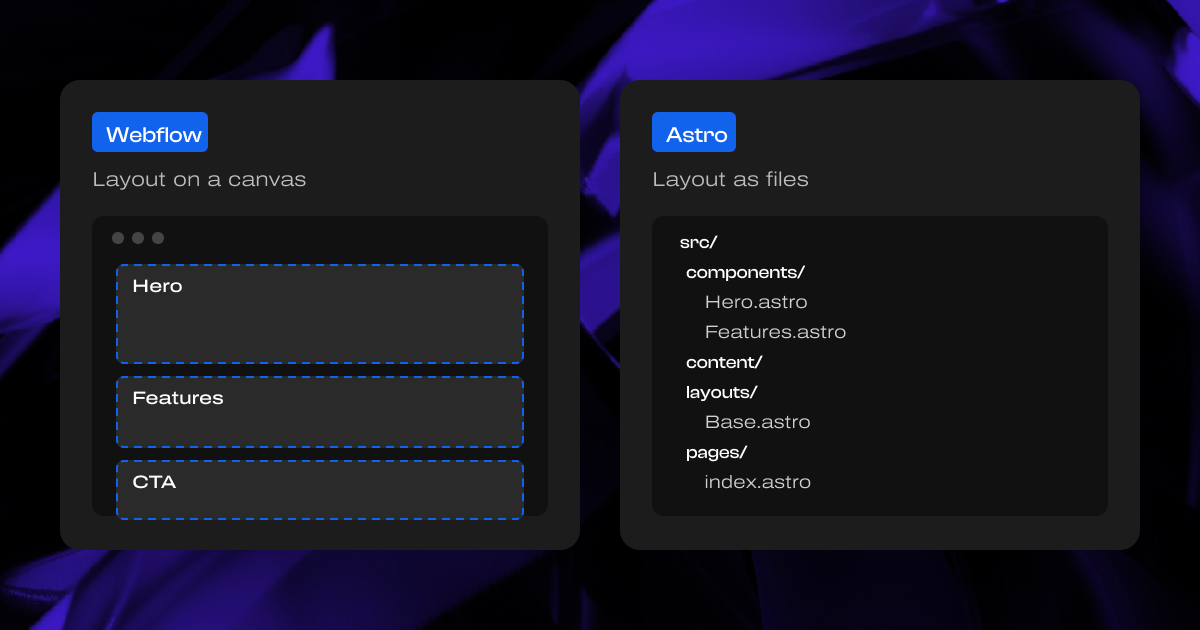
Webflow is one product. You design on a canvas, publish to Webflow's hosting, and get a CMS in the same plan. Its code, layout and content all live inside the platform.
Astro is one piece, the framework. A working site also needs a host and a CMS, so Astro is three choices where Webflow is one. Astro is free, open-source software under the MIT licence, which means you can use it commercially and change it. You write components in code, and Astro turns them into pages. You choose the host and the content source, and hosting costs depend on that choice.
The two tools answer different questions. Webflow answers "how do I get hosting, security and a CMS in one place?" Astro answers "how do I ship changes fast, with full control of the code?"
Which one ships changes faster?
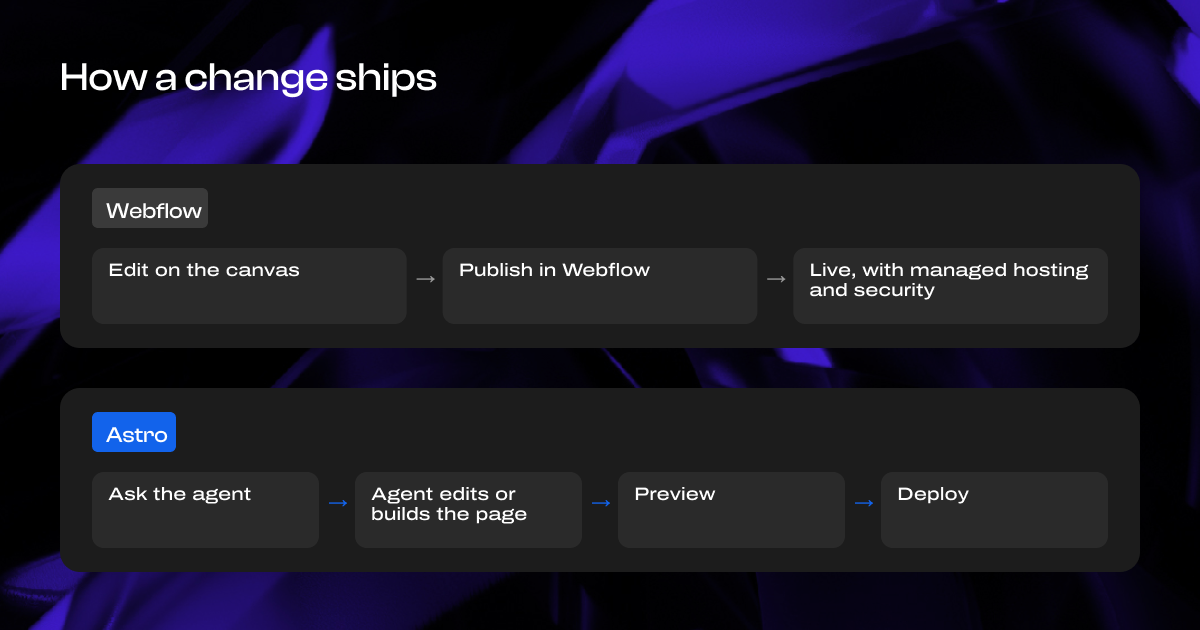
Astro, if your team works through an AI agent. You describe a change, and the agent edits the code. It can also build a new page or a new component when you ask. You check the preview, then deploy.
Webflow, if your team edits on the canvas. Editors change text, layouts and pages without touching code, and publishing goes live on Webflow's hosting.
The main reason to stay on Webflow is its managed security layer, with the pages and the CMS in one place.
Ask two questions about your site. How often do you need a new page or component shipped? And how much do you want the platform to handle security and hosting for you? The answers point to the platform.
Is Astro faster than Webflow? What we measured on migrations
Mixed, on the one site we measured. On the RHMMed migration, Astro's live site has lower blocking time on all four pages, and on the contact page it beats Webflow on performance and LCP. Its home page and article score lower on mobile than the Webflow site did before the move. Only that site has matched Webflow and Astro speed numbers. The podcast site and our own site show the other changes a move brings, and neither has a matched speed test.
RHMMed: Webflow to Astro
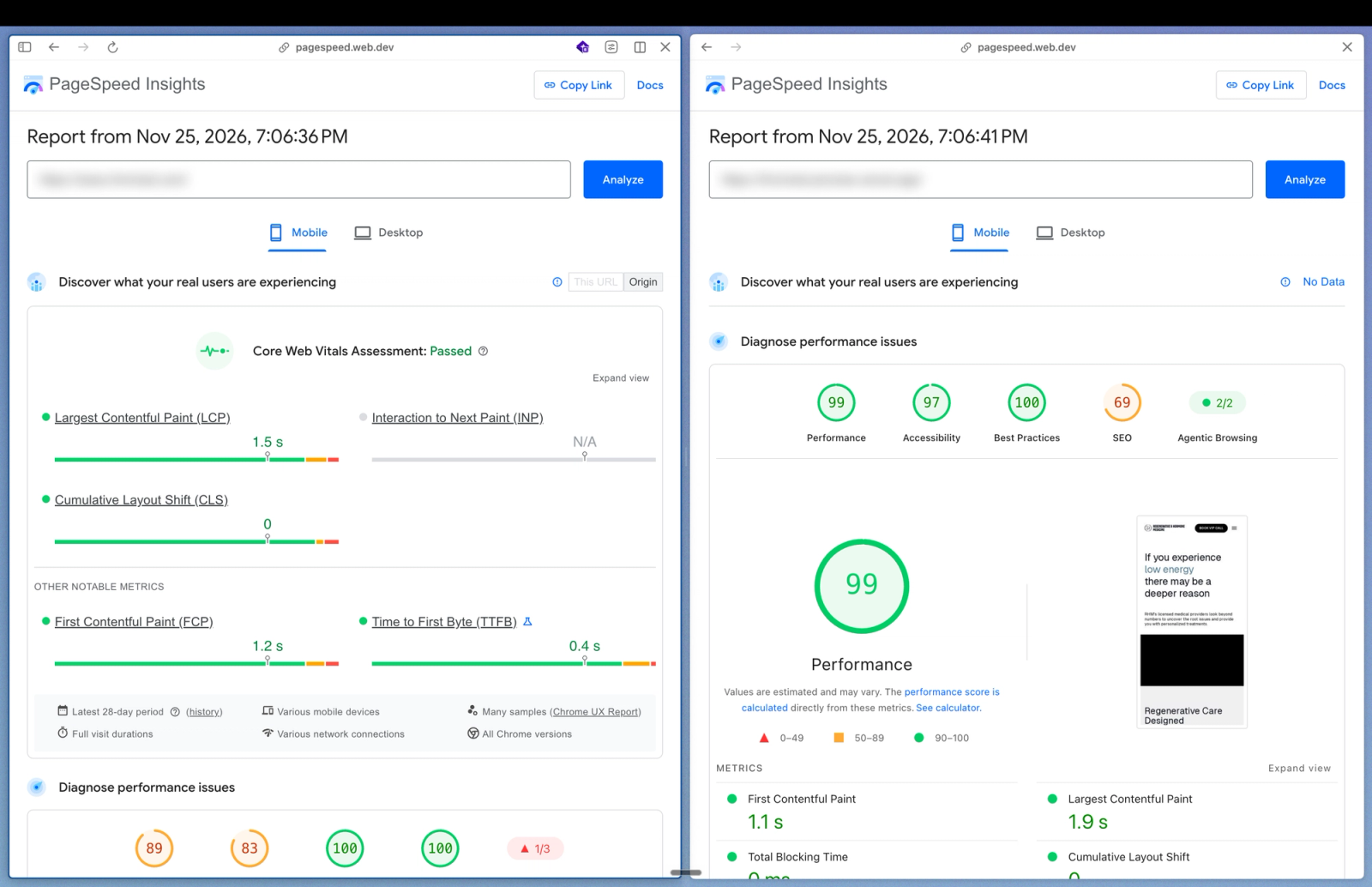
We rebuilt RHMMed's site from Webflow to Astro, same pages and same URLs. We ran mobile PageSpeed Insights (Lighthouse) on four matched pairs: the home page, a service page, an article and the contact page. Webflow's figures come from the live site on 25 Nov 2026, before cutover. Astro's come from the live site on 27 Nov 2026. Each figure is the median of five fresh runs per URL.
On the live site, Astro has lower blocking time on every page. Performance is mixed: higher on the contact page, about the same on the service page, and lower on the home page and the article.
Mobile medians on the live site. Astro's LCP is lower on the contact page (2.7 s against 11.2 s) and the service page (9.4 s against 9.9 s). It is higher on the home page (10.0 s against 3.2 s) and the article (4.1 s against 3.4 s). The home page's hero video is the likely cause of its slower LCP; we haven't tested a fix.
The contact page is the heaviest Astro page, at 1,174 KB of JavaScript against 938 KB on the home page. It still ships about 8% less than the Webflow contact page did (1,282 KB).
Webflow already passed Core Web Vitals in the field before the move. Chrome's field data for the live site on mobile is LCP 1.5 s and CLS 0. Lab scores don't replace that. The Astro version's field data arrives about 28 days after cutover.
Lab tests: PageSpeed Insights (Lighthouse), mobile, median of five fresh runs per URL. Webflow: live site, 25 Nov 2026, before cutover. Astro: live site at rhmmed.com, 27 Nov 2026, with a unique query string on each run so results aren't cached. JavaScript is the transfer size of script files per page load. Client: RHMMed.
The Accountant Quits: Webflow to Astro
The Accountant Quits is a podcast site with 110 episodes and an education business on the same domain. It was on Webflow, which Khod had moved it to from WordPress years earlier. The client wanted the site simpler to manage, so Khod rebuilt it in Astro and Tailwind with Sanity as the CMS.
The client asked for something like Webflow's build mode: assembling pages from existing components, without a free-form canvas that could get messed up by accident. Sanity's editor gives that, and the scope was agreed before handoff. The case study is at The Accountant Quits.
Our own site: Webflow to Next.js
We moved our site off Webflow onto Next.js, with Sanity as the CMS, hosted on Vercel. We chose that stack because the content model needed more than Webflow's CMS offers. For the full reasoning, see why we moved off Webflow.
We haven't published speed numbers for our own site, so this section has none.
For Next.js specifically, see Astro vs Next.js. This article doesn't compare the two in depth.
Can you run Astro on Webflow Cloud?
Yes, according to Webflow's own documentation. Webflow Cloud is a hosting environment for web applications. It hosts Next.js, Astro, Vite and static apps. You can deploy an app alongside a Webflow site, or on its own without a Webflow site.
The getting-started guide has you use a deploy wizard. The wizard clones an Astro or Next.js starter into your GitHub account, creates the Webflow Cloud app, sets up the first environment and starts the first deployment. The wizard asks for a mount path, which lets an app sit at a path on a site. You can also deploy with the Webflow CLI.
Webflow Cloud can reuse components from your Webflow site in an app through DevLink, so an Astro app can share the design system with the marketing site. It also provides storage options, including SQLite, a key-value store and object storage, for apps that need them.
Check the limits before you plan a split. Vercel's comparison says Webflow Cloud builds with `astro build` only, so custom build commands aren't supported, and it lists incremental static regeneration as unavailable there. Webflow's documentation also doesn't say how much of an existing Webflow site can move into an Astro app.
Does Astro have a CMS? Webflow's CMS vs a headless one
Astro does not include a CMS. Webflow's CMS works well for pages and collections that marketers manage. The limits show up as the content model grows: how many items you can hold, how many locales you need, who can edit which fields, and how one piece of content is reused across pages.
A headless CMS separates content from the front end. Astro pulls content from whichever CMS you choose, so the content model can grow without changing the site. The options and their trade-offs are in our Astro CMS guide.
A headless CMS adds setup. Someone, or an agent working from your instructions, has to define the content model, write the queries and wire the preview. Plan that work before you switch.
What does each one cost to run?
Cost has three parts: the platform or host, the work of shipping each change, and the work to move it.
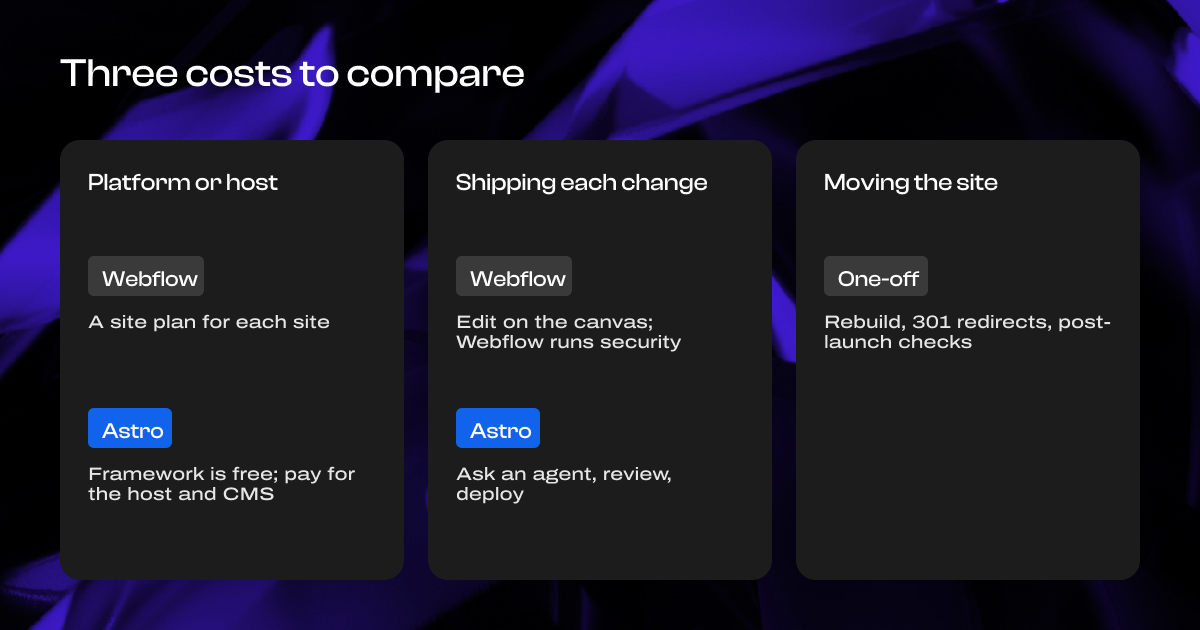
On Webflow, the recurring cost is the site plan, plus whatever tools your team adds around it, such as forms and analytics. Day-to-day changes happen on the canvas, and the platform manages security and hosting. The Webflow pricing explained article covers the plan tiers in detail.
On Astro, the framework costs nothing. The recurring cost is the host and the CMS. The work is in building and reviewing changes. An agent can build new pages, components and content-model fields when you ask, and someone checks and deploys them. That work pays off when you ship changes often.
These are the list prices we checked on 25 Nov 2026. Webflow's are billed yearly unless stated.
As of 25 Nov 2026, Webflow's pricing page lists Basic and Premium only. There is no Business plan. Free tiers have limits on items, users and bandwidth, so check them against your traffic before you commit.
The one-off cost of moving is the rebuild, the redirects and the checks that rankings and forms still work after launch. For a site with a few dozen pages, that is a scoped project. For a site with hundreds of pages, budget for a phased launch.
Forms, integrations and SEO: what Webflow gives you and what you own
Forms
Webflow forms are built in. Submissions are stored in Webflow, and you set email notifications for each form. The free Starter plan stops collecting submissions after 50 in total, and paid Site plans are unlimited, per Webflow's help article on form submissions.
Astro has no built-in form storage. A form posts to an endpoint you control. Astro Actions can validate form input and be called from a plain HTML form, or you can send submissions to a form service or a serverless function. Each option needs an owner for where submissions go and who gets the email.
Moving forms is the step teams miss. Webflow says a site it has exported no longer processes form submissions, so each form needs a new home before launch (Webflow's help article).
Integrations and custom code
Webflow lets you add custom code to a whole site or to single pages, and its SEO guide notes that custom code can affect performance. Astro puts a script in the layout or the component that needs it, and by default it strips client-side JavaScript from components that don't ask for it (Astro's islands guide). Third-party tools such as analytics or a chat widget move with the code, and each one needs its own check after launch.
SEO controls
Webflow gives you the SEO basics in the platform: a title and meta description per page, a sitemap that updates on every publish, a robots.txt file, and 301 redirects in Site settings on a paid plan. Webflow recommends keeping redirects to 1,000 or fewer, using wildcard rules where you can (redirects help). Its auto sitemap lists every live page unless you turn indexing off for that page, and it needs a default domain set, or crawlers hit redirects (SEO guide).
On Astro you own each of these. You write the title, meta description and JSON-LD in your layout. The @astrojs/sitemap integration builds the sitemap from your routes at build time, though it can't add dynamic routes in SSR mode. Redirects are a mapping in the Astro config, as shown in Astro's routing guide.
Schema follows the same pattern. Webflow lets you add custom code on each page, and Astro renders JSON-LD from a component. Either way, you write the schema yourself.
What changes in a move
A move changes more than the framework. Plan for these before you start:
A code export alone doesn't move a working CMS, hosted forms or integrations. Plan for each one (Hapy's Webflow to Astro guide).
- URLs. Every page that has a link, a ranking or a campaign pointing at it needs a plan. Map old URLs to new ones before the build starts, and redirect each one with a 301.
Forms and tracking. Each form needs a new endpoint before launch. Analytics and embedded tools need checking too. Check that each form still delivers leads to the same place after launch.
- Content. Webflow CMS items need to move to the new CMS, with their references, images and rich text. Test a sample of pages against the old ones.
- Design system. If the marketing site and the product share components, decide early which system is the source. Webflow Cloud's DevLink can reuse Webflow components in an Astro app; if you're not using it, the components are rebuilt.
- Monitoring. Watch rankings, crawl errors and conversion rates for at least a few weeks after launch.
How to test a split before you commit
If you're considering a split, where Webflow keeps most of the site and Astro hosts part of it, run a small test first:
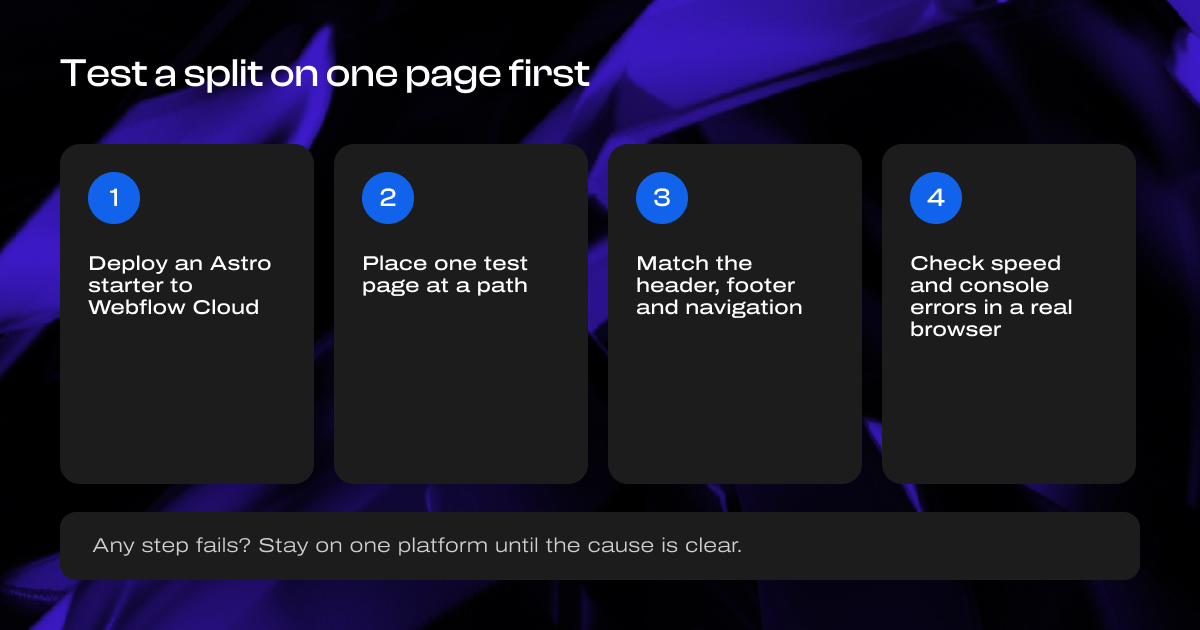
- Deploy an Astro starter to Webflow Cloud, using the wizard, and note the mount path it asks for.
- Place one test page at a path on a copy of your site.
- Check that the header, footer and navigation look the same on both sides. Shared components are where splits break first.
- Check the page in a real browser on mobile and desktop, including speed and console errors, and agree how changes get shipped, through an agent or the Webflow canvas, before you build the rest.
If any of these steps fails, stay on one platform until the cause is clear. A split adds a second deployment, a second set of logs and a second place for bugs.
Should you stay on Webflow or move to Astro?
Stay on Webflow when
- You want managed security and hosting, and you don't want to run the infrastructure yourself.
- You need hosting, forms and the CMS in one place, and you don't need code ownership.
- The site is a brochure or a small set of pages, and the cost of a rebuild is more than the platform costs you over the next few years.
- You're using Webflow's existing design system on other sites and want the marketing site to match.
Move to Astro when
- You want to ship changes faster by asking an AI agent, including new pages and components.
- You need a content model that outgrows the Webflow CMS.
- You want to host parts of the site on your own infrastructure, or on Webflow Cloud alongside the Webflow site.
- Page weight and JavaScript are numbers you can measure before you commit.
- You want code ownership, with the site in your own repository.
If none of these is true, the move is a cost without a return.
Start with what you need most: faster shipping through an agent, or managed security and a CMS built in. If faster shipping matters most, Astro with a headless CMS fits a scoped pilot: one template, one landing page, one measured result. If security and a built-in CMS matter most, stay on Webflow.
Frequently asked questions
Is Astro free?
Yes. The framework is free and open-source under the MIT licence. Hosting and a CMS are separate costs, and their prices depend on what you choose.
Can I run Astro on Webflow Cloud?
Yes. Webflow Cloud's documentation lists Astro as a supported framework, and the deploy wizard starts from an Astro template. Test the mount path before you plan a split.
Is Astro better than Webflow?
Each wins a different job. Astro is faster for shipping changes through an agent, and Webflow gives you managed security and a built-in CMS.
Do Webflow forms carry over to Astro?
No, not on their own. A Webflow export doesn't process form submissions, so each form needs a new endpoint before launch.
Who builds an Astro site?
An AI agent can build it from your instructions. Someone on your team reviews the changes and deploys them.
Share the Article


Kickstart your project today!
Book a call to discuss your goals and how we can help you reach them.
See Khod First on Google
Uros is the brains behind the builds, turning Figma files into clean, scalable sites. He builds Webflow sites so smooth, you’ll think they coded themselves.
Outside the Webflow canvas, you’ll find him testing out new recipes, planning his next weekend escape, or deep in thought wondering why websites break at 3AM and not during office hours.
Table of Content
Kickstart your project today!
Book a call to discuss your goals and how we can help you reach them.
See Khod First on Google
Explore Related Articles

Sanity • Nov 20, 2026 • 11 min read
Sanity vs Contentful: Prices, Limits and Which One Fits in 2026
Astro • Nov 13, 2026 • 12 min read
Astro Pricing in 2027: Is Astro Free, and What Does a Site Cost?
Website Strategy • Nov 2, 2026 • 11 min read
Website Replatforming: What It Is and When a B2B Team Should Do ItYour Next Deal Starts With Your Website
Most deals are won or lost before your sales team gets involved. Let's make sure your site is ready for that moment.
