
Resource Center / Integrations / Microsoft Clarity Webflow Integration
Microsoft Clarity Webflow Integration
Microsoft Clarity shows you how visitors behave. We help you connect it to Webflow so you can see every click, scroll, and abandoned form to convert more of your traffic.



Complexity
Low
Timeline
15min
Cost
Included in your project
Can we help?
Yes, absolutely!
You provide
Microsoft Clarity account
We deliver
Live and tested
TL;DR
Microsoft Clarity is a free behavior analytics tool for Webflow sites. It gives you heatmaps, session recordings, rage clicks, dead clicks, scroll depth, and AI summaries.
- Easiest setup: Install the official Microsoft Clarity app from the Webflow App Marketplace, connect your project, and publish.
- Main value: See where users get stuck, miss CTAs, abandon forms, or click elements that are not clickable.
- Use with GA4: GA4 shows traffic, events, and conversions. Clarity shows the behavior behind them.
- Pro tips: Configure cookie consent, mask sensitive fields, block internal traffic, and track key actions.
For most Webflow marketing sites, Clarity is enough to start finding conversion issues without a complex analytics setup.
What Clarity Actually Shows You
GA4 tells you what happened. Clarity shows you why.
GA4 can tell you a page got traffic and that a conversion event fired. It can't tell you that visitors tried to click a card that isn't a link, gave up on a form at the third field, or never scrolled far enough to see the CTA. Clarity can.
Here's what you get:
- Heatmaps
- Session recordings
- Rage clicks and dead clicks
- Scroll depth
- JavaScript error signals
- AI-powered session summaries
- Behavior patterns across devices
On a Webflow site, that's the layer that makes conversion work possible. You watch how people actually use your pages, then adjust layouts, CTAs, forms, and structure based on what you observed.
Why Bother With Clarity on Webflow
Because it's free, it takes 15 minutes, and it tells you things page views never will.
If your site is built and hosted on Webflow, Clarity is the lowest-effort way to add real behavior data without the need of custom setup and expensive engineering hours. You get heatmaps, recordings, scroll data, click behavior, and AI summaries in one dashboard.
The job it does is simple: show you where people get stuck, so you can fix it.
How to Connect Microsoft Clarity to Webflow
All you have to do is search for the official Microsoft Clarity app in the Webflow App Marketplace and install it. The app links your Webflow project to a Clarity project and drops in the tracking script automatically, meaning there are no scripts for you to paste, and no code to maintain. For most Webflow-hosted marketing sites, that's the method to use, and it's the one we'll walk through here.
There are two other ways into install Clarity, through manual code and Google Tag Manager. They exist for different reasons such as gating the script behind cookie consent, or managing every tag from one place. They're more work for little upside, so we won't cover them on this page.
Install the Microsoft Clarity App
To get the analytics tool to function, there are five steps.
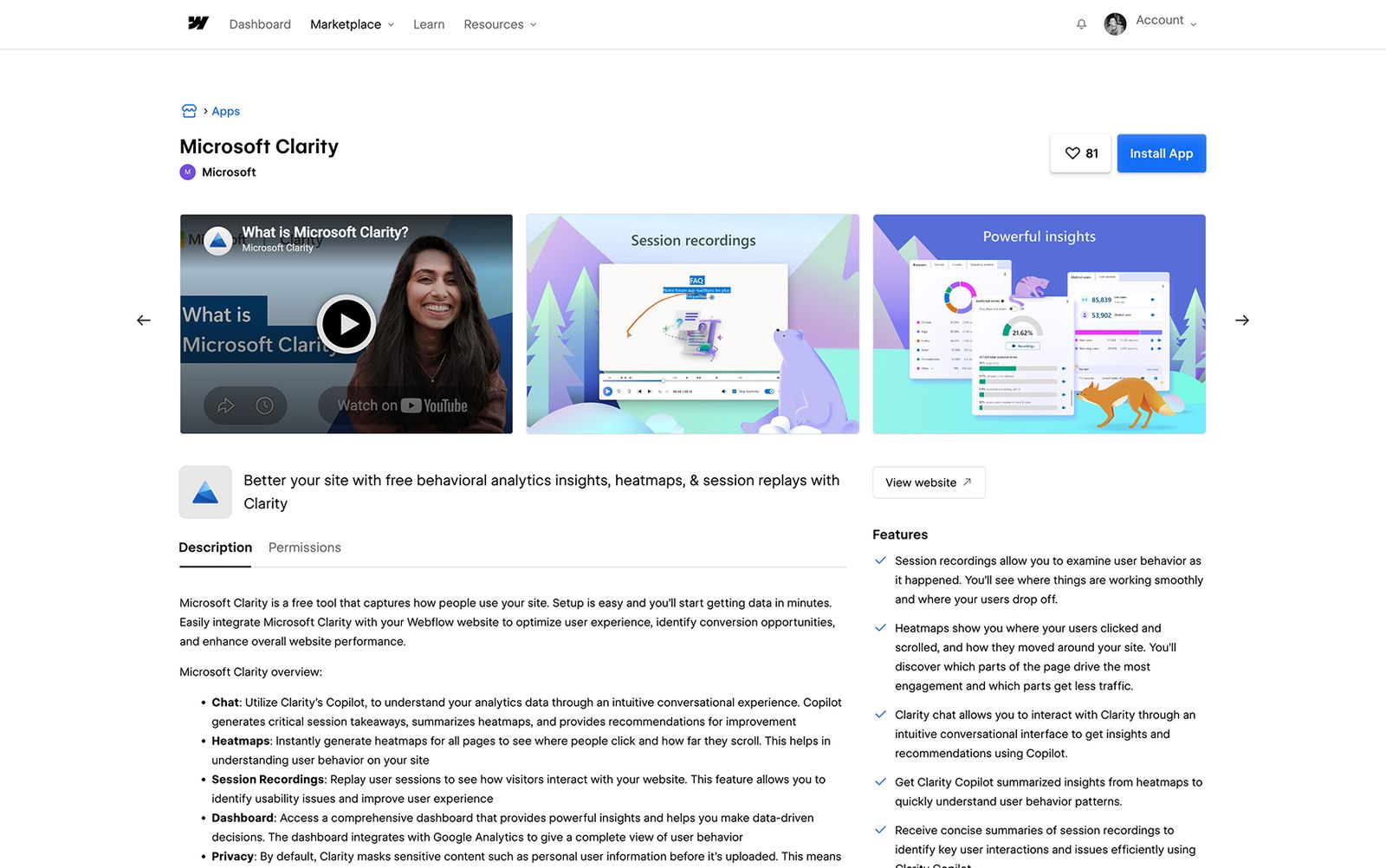
Step 1 — Find the app and install it
In the Webflow Designer, open the Apps panel (press E) and search the marketplace for Microsoft Clarity. Open the official app and hit Install. You can do the same from the App Marketplace in your browser.
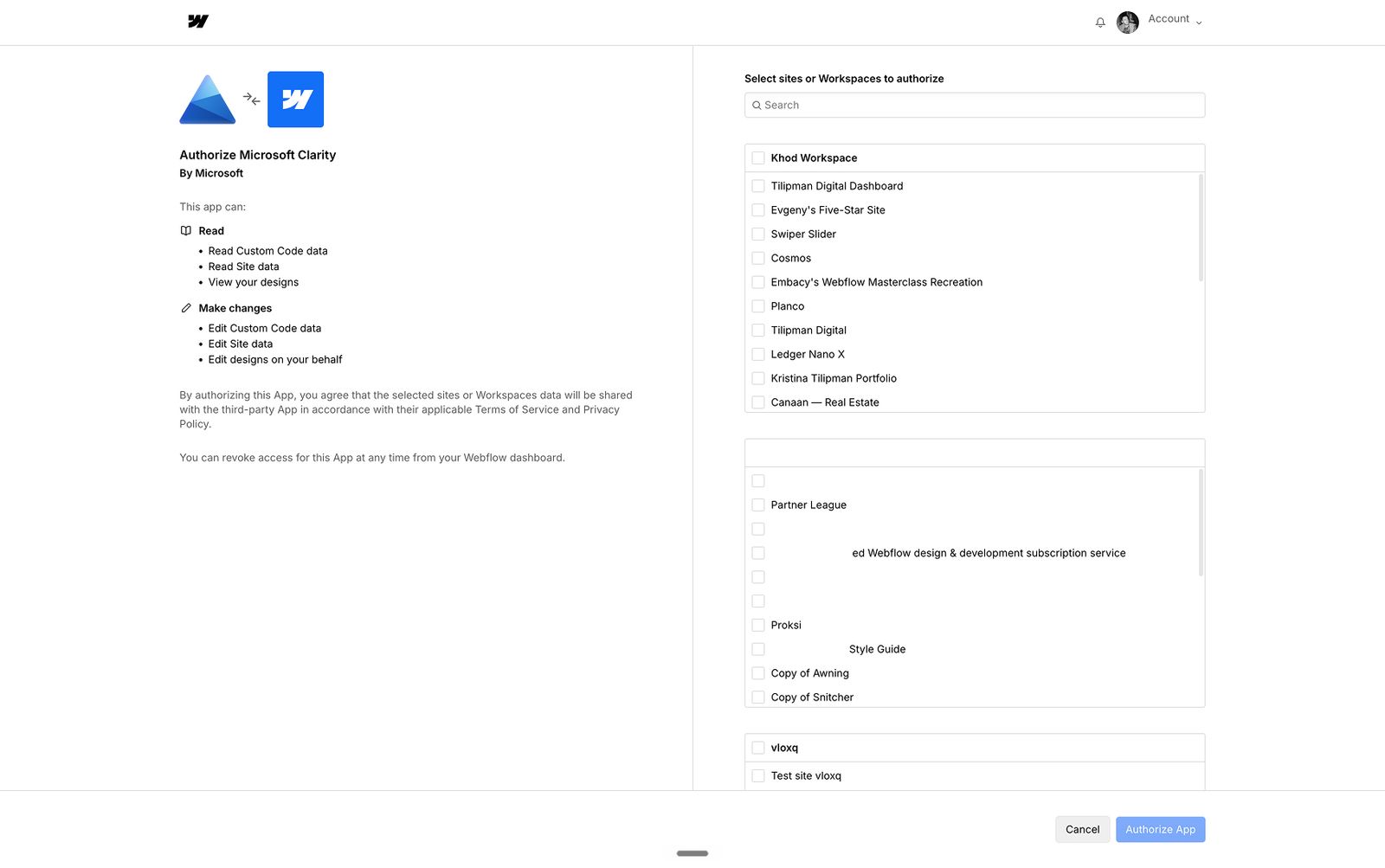
Step 2 — Authorize and pick your site
Webflow asks you to authorize the app and choose which site to connect. Pick the right one.
Manage more than one site? Double-check. Connecting Clarity to the wrong project is the kind of mistake you only notice a few days later as the data doesn't show up immediately.
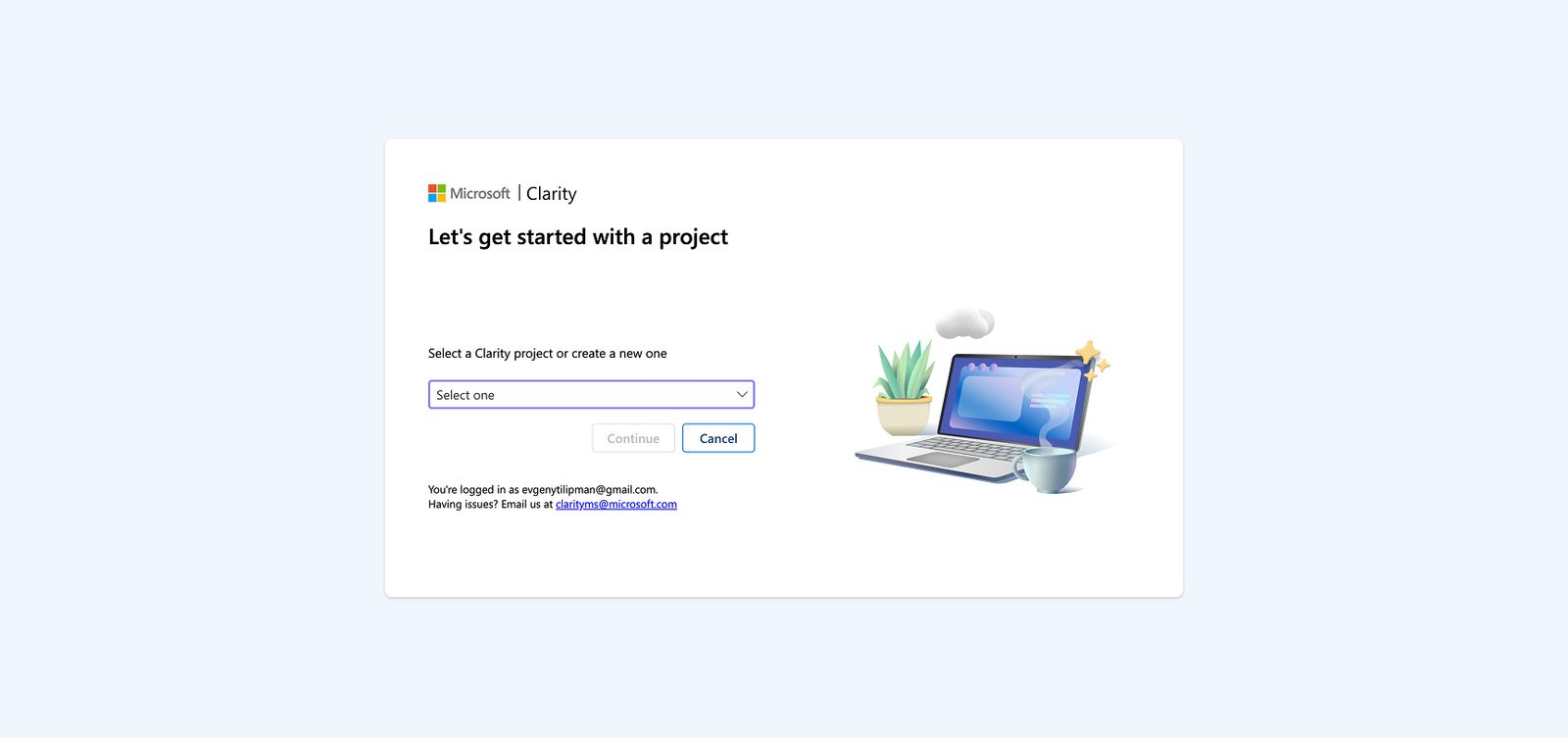
Step 3 — Sign in to Clarity and create a project
Sign in to Microsoft Clarity, or create an account (it's free. Then create a new project for this site, or link one you already have.
When you create it, enter your site name and your live domain. That's how Clarity knows whose traffic to record.
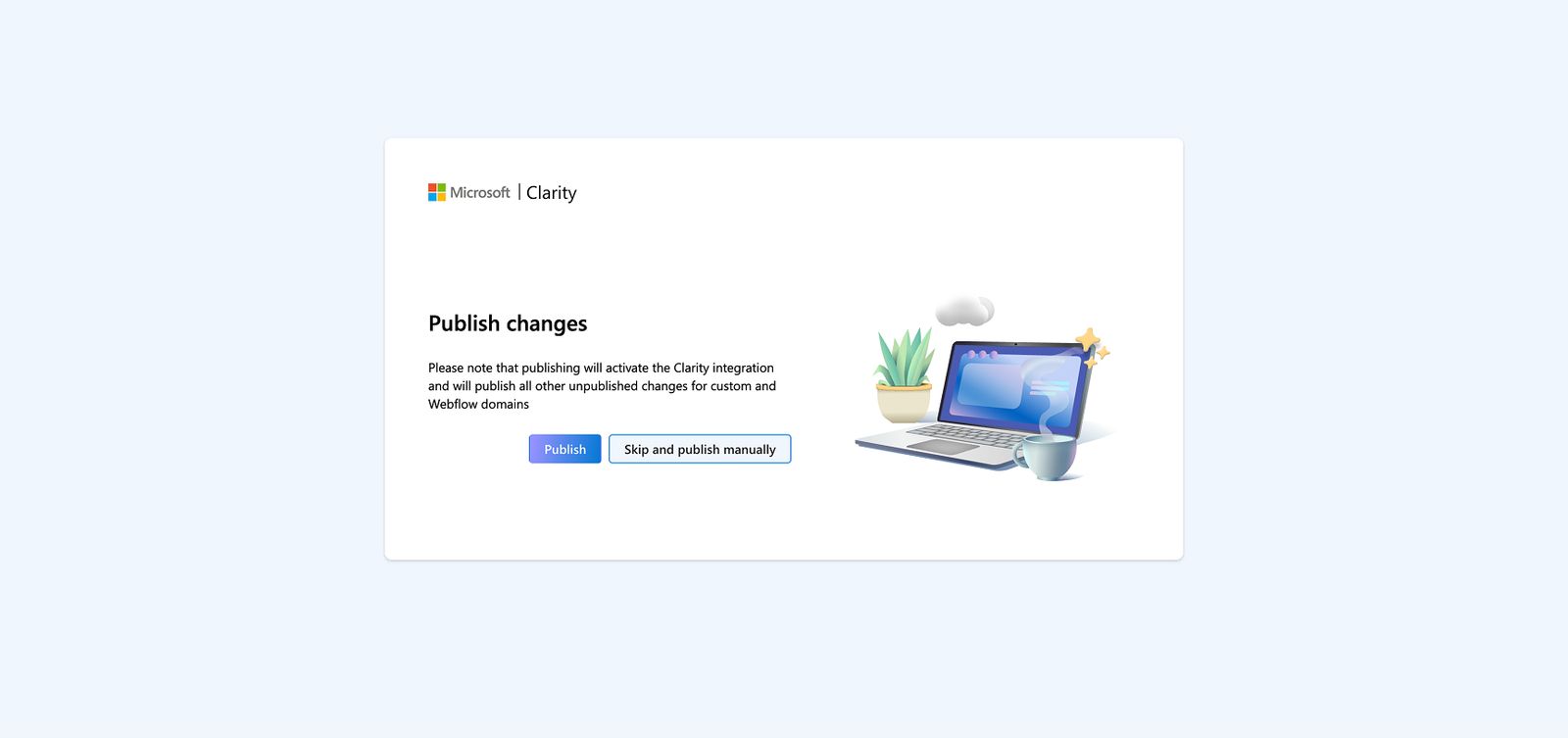
Step 4 — Publish the site
The script only goes live when your site does. Hit Publish in Webflow or through the app. Make sure you're publishing to the domain you want to track, being your custom domain instead of the .webflow.io staging URL.
Step 5 — Confirm data is coming in
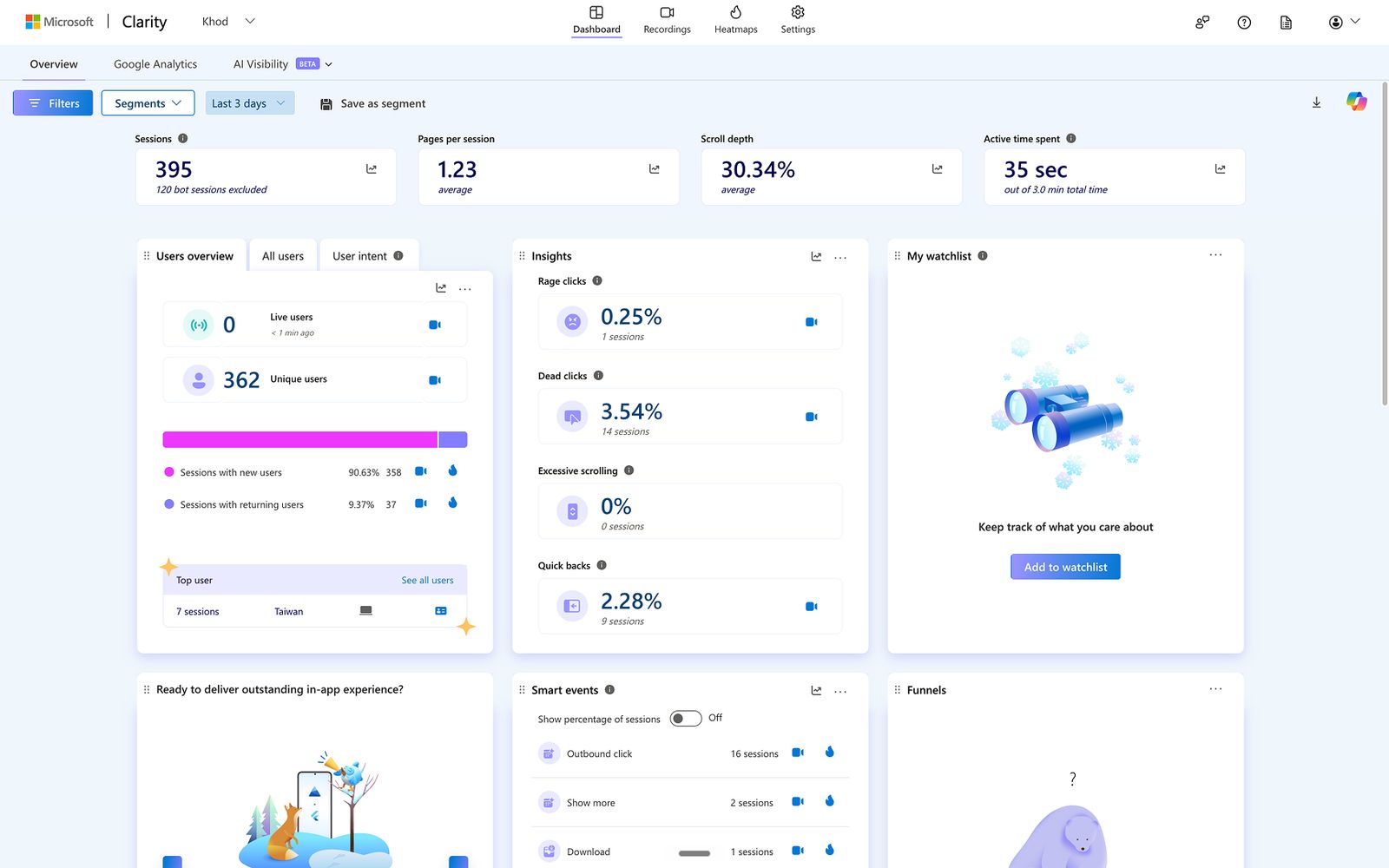
Open your Clarity dashboard and select the project. Clarity verifies the connection on its own. That part takes a few minutes.
Heatmaps and recordings need real visitors, so give them a couple of hours to fill in. You can also reopen the Clarity app straight from Webflow's Apps panel and watch the data there, although doing so by directly visiting the Microsoft Clarity website gives you a better experience.
That's it. For most Webflow marketing sites, you're done.
Installed It but the Dashboard Is Empty?
That's normal at first. An empty dashboard right after setup almost always comes down to one of these:
- You haven't published. The script is live on published pages only. Republish after connecting the app.
- You published to the wrong domain. Clarity is watching your custom domain, but you published to the
.webflow.ioURL (or the other way around). Match them. - You're checking too soon. Verification is quick. Heatmaps and recordings are not; they need traffic, and that takes a couple of hours.
- You're blocking yourself. If you set up IP blocking, and you should, your own visits won't show. That's working as intended. Test from another network or pause the block.
- An extension is eating the script. Ad blockers and privacy extensions stop Clarity cold. Check in a clean browser profile with extensions off.
- There's barely any traffic yet. New page, few visitors, nothing to show. Give it time, or send a few test sessions from an allowed network.
Still nothing after all that? Reopen the Clarity app in Webflow's Apps panel to confirm the connection is live, then re-check the tracking code under Clarity → Settings → Setup.
Don't Trust the Data Until You've Done These Four Things
Installing Clarity isn't the same as trusting Clarity. Four settings stand between "it's recording" and "I can make decisions off this."
Cookie Consent
If you get traffic from the EEA, UK, or Switzerland, your consent setup has to work with Clarity.
Clarity records behavioral data, which puts it squarely inside GDPR. Your cookie banner should disclose analytics tracking, respect the visitor's choice, and send the right consent signal before Clarity collects anything.
Get this wrong and you lose twice: incomplete reporting, and a compliance gap you didn't know you had.
Sensitive Field Masking
Clarity records sessions. That means it can record what people type. You can stop this process though.
Mask anything personal before you review a single recording:
- Name
- Phone number
- Message fields
- Password fields
- Payment fields
- Any field collecting personal information
The aim is to understand behavior without ever seeing private data.
Internal Traffic
Your own visits don't count. Keep them out.
In Clarity, go to Settings → IP blocking and add your office, team, and agency IPs. Working remotely? Collect the IPs of everyone who regularly tests or reviews the site.
QA clicks and client walkthroughs shouldn't shape what you conclude about real users.
Key Events
We track the actions that signal intent and skip everything else.
Clarity's Smart Events let you track specific clicks and page visits with no custom code. For more involved setups, use the Clarity API or your analytics stack.
On a B2B Webflow site, that usually means:
- Book-a-demo clicks
- Contact button clicks
- Form submissions
- Pricing CTA clicks
- Resource downloads
Track what tells you someone is moving toward becoming a lead.
Clarity and GA4 Answer Different Questions
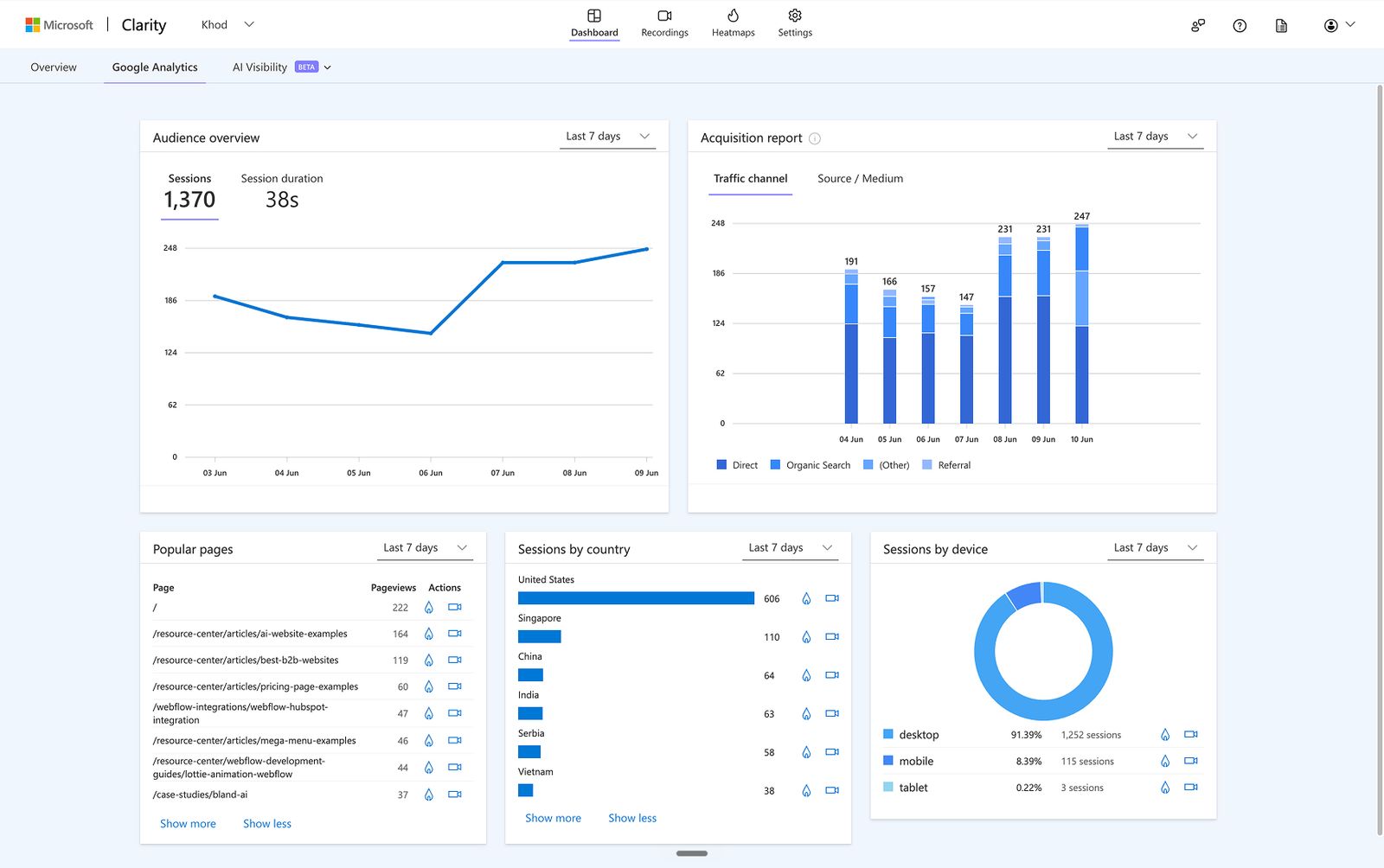
We like to run them together. They're not competitors as they cover different halves of the same problem. See our guide on integrating Google Analytics with Webflow.
GA4 gives you the numbers: traffic, events, conversions, attribution. Clarity gives you the behavior: heatmaps, recordings, rage clicks, dead clicks, scroll depth.
Connect them and you can jump from a GA4 segment straight into the Clarity recordings behind it. That's how you stop asking "why isn't this high-traffic page converting?" and start watching the reason play out.
What Clarity Is Good For
In our experience, Carity does one job well: figuring out why a page that gets traffic doesn't convert.
It shows you whether people reach the CTA, click the right things, stall on mobile, abandon forms, or skip the sections you thought mattered. That's enough to drive a lot of CRO decisions:
- Users keep clicking a card that isn't a link? Make it clickable, or redesign it.
- Mobile users never reach the CTA? Move it up.
- People start the form and drop off? Cut fields.
The tool helps you respond to what you observed isn't working.
How We Use Microsoft Clarity
Clarity is one layer of the research we run before recommending a change. We pair it with GA4 for traffic and conversions, and Google Search Console for search visibility. Between the three, we can tell whether a page has a UX problem or a messaging problem.
And as you may have already imagined, we run it on our own site too. A recent four-week window, and what we did with it:
Scroll depth averages 32%. Most visitors never reach the bottom of a page. So we stopped putting anything that matters down there. On our highest-traffic pages, the primary CTA now sits in the first 30%, where people spend most of the time.
Most of that traffic lands on blog posts, not commercial pages. People read an article and leave. So we added internal links from those posts to the related service and commercial pages, plus a CTA in the top 30%. We’re doing everything we can for the blog to stop being a dead end and start contributing to revenue.
ChatGPT is one of our biggest referrers, with more sessions than Bing, and climbing. AI search is sending in traffic, and it's growing. So we're doubling down on getting cited by it. The channel is working and increasing in traffic share, so we’re doubling down on it.
More than a quarter of sessions are bots, and we don't care. Crawlers, AI, scrapers, etc. are not people. We can't control it and we don't want to: that activity is part of how we get indexed and cited in AI answers. Clarity separates bots from human sessions on its own, so they don't skew the behavior data anyway. We note the number and move on.
Dead clicks are noisy. Around 5% of sessions have one, but the recordings tell a different story than the metric. People click empty space. They click plain text. Most of the time it isn't a broken element, which is interesting as one would assume that people know how to use websites. It’s exactly why we watch recordings instead of trusting the numbers at face value.
The Short Version
Clarity is easy to connect and useful the moment it's live.
Install the app, connect your project, publish, and confirm data's coming in. Then do the four things that make the data trustworthy: consent, field masking, internal traffic, key events.
Do that, and you're looking at how people really behave on your site, before you touch a CTA, a form, or a layout.
Need help setting up integrating Microsoft Clarity with your Webflow site and interpreting the data? Our Webflow development services may be what you need. Explore services, or book a call.
FAQ
How do I integrate Microsoft Clarity with Webflow?
Install the official Microsoft Clarity app from the Webflow App Marketplace, connect your Clarity account, choose your Webflow site, and publish. No custom code required.
Is Microsoft Clarity free for Webflow sites?
Yes. Clarity is free, with no required paid plan. That includes heatmaps, session recordings, behavior insights, and AI summaries.
Can Microsoft Clarity connect with Google Analytics?
Yes. Clarity integrates with Google Analytics, so you can pair the quantitative side (traffic, conversions) with session recordings and behavior data.
Does Microsoft Clarity slow down Webflow?
For most sites, barely. The script loads asynchronously. Still, check your performance after adding any third-party script.
Does Microsoft Clarity record user sessions?
Yes. You can watch how visitors move through your site. Mask sensitive fields before you review anything.
Can Microsoft Clarity track Webflow form submissions?
Yes. Use Smart Events, Clarity events, or your analytics setup to track form submissions and other key actions.
Is Microsoft Clarity GDPR compliant?
It can be, but not out of the box. Clarity includes privacy controls, masking, and consent features — but your implementation is what makes it compliant. If you get traffic from regions with consent requirements, set up cookie consent properly.
Share the Article

Evgenii Tilipman is the founder of Khod, a digital agency helping B2B tech companies turn their websites into demand-generating assets.
He works closely with founders and GTM teams to define positioning, structure high-converting pages, and build scalable Webflow systems that support growth.
Before founding Khod, Evgenii led Webflow development at an agency and worked with Memberstack to build products for the Webflow community. He has since supported teams from seed to Series C across positioning, conversion, and Webflow development.
Outside of work, he's a husband, dog dad, and someone who treats his health and long hikes with the same consistency he brings to his projects.
Table of Content


Kickstart your project today!
Book a call to discuss your goals and how we can help you reach them.
See Khod First on Google
More Integrations
 GoHighLevel Webflow Integration
GoHighLevel is an all-in-one CRM and marketing platform: pipelines, calendars, email and SMS, and automation workflows, popular with agencies and service businesses.
 Webflow Shopify Integration
Shopify runs the ecommerce backend. We help you connect it to Webflow, so your site has stronger product pages, clearer buying paths, and the right setup behind the scenes.
 Webflow Salesforce Integration
Salesforce runs the sales backend. We help you connect it to Webflow, so your forms, lead capture, and conversion paths send the right data to the right place.
Your Next Deal Starts With Your Website
Most deals are won or lost before your sales team gets involved. Let's make sure your site is ready for that moment.
