
Resource Center / Integrations / Webflow Shopify Integration
Webflow Shopify Integration
Shopify runs the ecommerce backend. We help you connect it to Webflow, so your site has stronger product pages, clearer buying paths, and the right setup behind the scenes.



Complexity
Low - Hard
Timeline
1h - Several Weeks
Cost
Included in your project
Can we help?
Yes, absolutely!
You provide
Shopify account
We deliver
Live and tested
TL;DR
There is no native Webflow Shopify integration that turns Webflow into a full Shopify storefront.
The standard setup uses Webflow for the front-end experience and Shopify for inventory, checkout, payments, and fulfillment, with one of four methods connecting the two.
- Shopify Buy Button: Free and takes under an hour, but design control is limited and it only works well for small catalogs
- Sync tools: Storesynk and Smootify let you design product pages in Webflow while Shopify runs the commerce backend. This is the right middle ground for most projects, but Webflow CMS limits still apply
- Make or Zapier: Useful for post-purchase workflows and data sync, not for building product pages or storefronts
- Headless Shopify: Gives full control over cart, inventory, CMS limits, and checkout logic, but requires a developer
Webflow handles design and content. Shopify handles inventory, checkout, payments, and fulfillment. Want to compare them? See our article on Webflow vs Shopify. This guide, on the other hand, covers the four ways to connect them.
Webflow Shopify integration options compared
Method 1: Shopify Buy Button
Shopify Buy Button is the simplest option. Shopify generates an embed code, you paste it into a Webflow Embed element, and the product or cart appears on your page. No third-party tools, no API setup, no developer required.
How to set it up:
- In Shopify, go to Sales Channels → Buy Button.
- Select a product or collection and click Create.
- Customize the basic button or product card appearance.
- Copy the embed code Shopify generates.
- In Webflow, add an Embed element to your page and paste the code.
- Publish the page.
What you get and what you don't: Buy Button is free on all paid Shopify plans and takes under an hour. Checkout routes through Shopify, so payments, taxes, orders, and fulfillment stay in Shopify natively. What you give up is design flexibility as the embed won't match a fully designed Webflow product page, and you have no control over product grids, advanced filters, or cart behavior. A large catalog managed through individual embeds becomes unmanageable quickly.
When to use it: One-product landing pages, small catalogs, digital products, or early tests before committing to a larger setup. If ecommerce is a small part of your site where you have a few paid resources, templates, or event tickets, the Buy Button method is often enough.
When not to use it: If users need to browse, filter, and compare products, or if the product pages need to match the rest of the Webflow design, Buy Button will feel limited. Use a sync tool or headless setup instead.
Method 2: Sync tools (Storesynk, Smootify)
Sync tools are the practical middle ground for most Webflow Shopify projects. They sync Shopify product data into Webflow CMS so you can design the full storefront in Webflow. You can use it for product cards, collection pages, product detail pages, while Shopify handles checkout and commerce operations in the background.
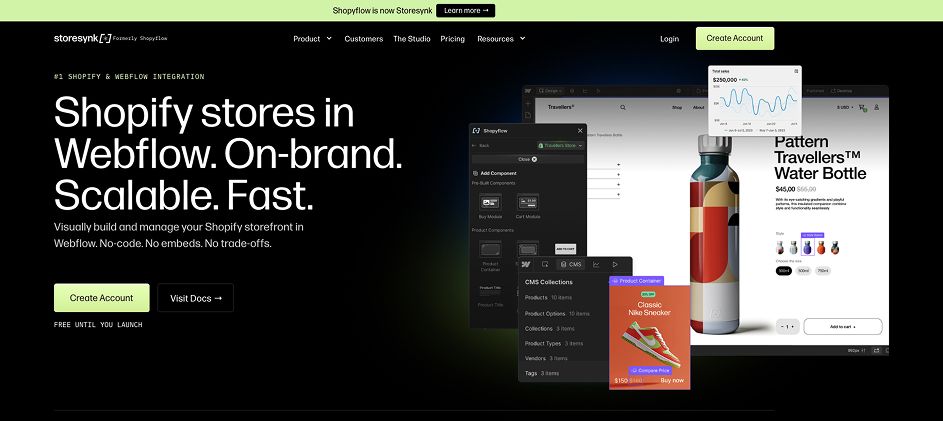
Storesynk (formerly Shopyflow)
Storesynk is built specifically for Webflow and Shopify. It syncs Shopify product data into Webflow CMS, comes with 50+ pre-built components, and is free until your site launches — $59/month after that. Worth noting: the rebrand from Shopyflow happened recently, so most competitor articles still use the old name.
It works well when the product experience needs to feel native to the rest of your Webflow build.
Smootify
Smootify has the same goal: Shopify as the commerce backend, Webflow as the design layer. It added AI-assisted features and was a Webflow Awards finalist. Like Storesynk, it's free during build and moves to a paid plan at launch. The core architecture is the same as Storesynk where the pricing and feature sets are the main differentiators between the two.
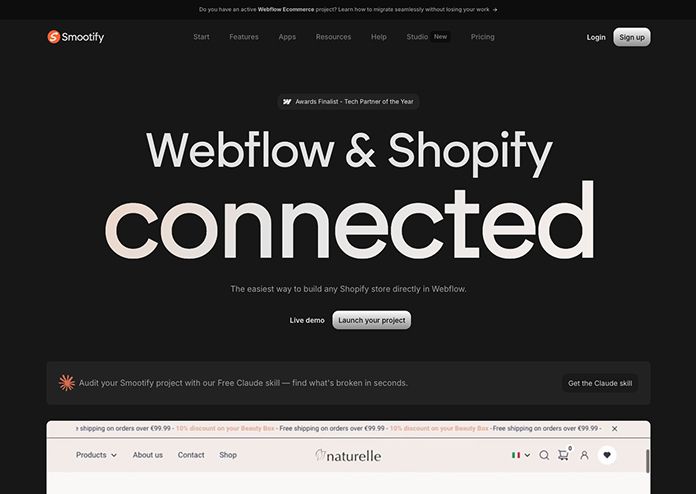
Smootify also has a Webflow app, making the integration simple. Here's a video of Pixel Geek explaining the setup:
Checkout still belongs to Shopify
In both cases, checkout routes through Shopify. That's the point; Shopify will handle payments, taxes, orders, discounts, shipping, and fulfillment. On the other hand, your site will handle the browsing and product experience.
Note: deeper checkout customization beyond basic branding is only available on Shopify Plus. If the transition from Webflow to checkout needs to feel on brand, plan it early. For most users, Shopify checkout is familiar enough that it doesn't hurt conversion — but if the brand experience is highly custom, it's worth thinking through.
Where sync tools break down
The biggest limit is scale. Both Storesynk and Smootify rely on Webflow CMS, which means your catalog can hit CMS item limits, field limits, and variant complexity before you expect it. This limitation shows up as the catalog grows, variant counts get messy, or publishing becomes slow.
Before committing to a sync tool, map the product structure: number of products, variants, collections, fields, update frequency, and expected growth. For a 50-product store, sync tools work well. For thousands of SKUs with frequent inventory changes, consider headless from the start.
When to use sync tools: You want a custom Webflow storefront, Shopify remains the commerce backend, and the catalog is small to mid-size. For most serious Webflow Shopify projects that don't need custom development, this is the right default.
Method 3: Make or Zapier
Make and Zapier can connect Shopify and Webflow, but they are not storefront tools.
Both of them are automation platforms. They're useful when an event in one system should trigger an action in another: a new Shopify order creates a Webflow CMS item, a purchase triggers a Slack notification, a customer gets added to a CRM, or a fulfillment update gets pushed somewhere else. That's where they belong.
They are not the right architecture for building product pages, managing product grids, handling cart logic, or syncing large catalogs. You can push Shopify product data into Webflow CMS with automation, but you'll still need to manage field mapping, publishing, variants, inventory, and update timing — at which point a dedicated sync tool handles it better with less overhead.
Here’s an example of how the integration would work with the help of Zapier:
When to use them: Post-purchase automation around an existing storefront integration, not as the primary method for displaying or selling products.
Method 4: Headless Shopify with a Webflow frontend
Headless Shopify is the most flexible option and the most technical. Shopify acts as the commerce backend via the Storefront API, Webflow handles the front-end design, and a custom integration connects the two, usually through a serverless function.
The key difference from sync tools is that product data doesn't need to live in Webflow CMS. Shopify stays the source of truth and Webflow becomes the experience layer, pulling data via API rather than storing it.
What headless unlocks:
- Custom cart behavior,
- Real-time inventory,
- Advanced filters,
- Custom product search,
- No CMS item limits, and
- Possibility of a cleaner analytics across GA4, Meta Pixel, and Klaviyo.
For large or complex stores, this architecture is substantially better than the sync tool approach.
The trade-off is developer time, both to set up the integration and maintain it.
When to use headless: Large catalogs, frequent inventory changes, complex filtering, real-time availability requirements, custom cart logic, or any setup where ecommerce performance is central to the business.
Important notes before connecting Webflow and Shopify
Webflow CMS limits
If Shopify products are synced into Webflow CMS, your catalog is limited by Webflow’s CMS structure. This can become a problem with large catalogs, complex variants, frequent product updates, or slow publishing. For smaller stores, sync tools work well. For larger stores, headless is usually safer.
Checkout customization
Most Webflow Shopify setups send users to Shopify checkout. That keeps payments, taxes, orders, and fulfillment inside Shopify. Basic checkout branding is available on standard Shopify plans, but deeper checkout customization usually requires Shopify Plus.
Analytics and attribution
The integration can work correctly while the business data stays messy. When browsing happens in Webflow and checkout happens in Shopify, revenue attribution, purchase events, and customer journeys can get split across systems. Plan GA4, Meta Pixel, Klaviyo, and cross-domain tracking before launch.
Product data ownership
Shopify should stay the source of truth for product data. Webflow should control the front-end experience, not become a second product database. If products are updated in Shopify but not synced or published properly in Webflow, the storefront can show outdated product information.
Choosing the right Webflow Shopify setup
The right setup depends on how your store needs to work.
If you only need to sell a few products, Shopify Buy Button may be enough. If you want a custom Webflow storefront with Shopify handling the backend, Storesynk or Smootify is usually the better route. If your catalog is large, changes often, or needs custom filtering and cart logic, headless Shopify is the safer long-term setup.
Khod helps B2B companies design and build Webflow sites with the right technical setup behind them.
See our Webflow development services or contact us if you want help choosing the right path.
FAQ
Can you integrate Shopify with Webflow?
Yes. The standard approach uses Shopify for ecommerce and Webflow for the website experience. The main methods are Shopify Buy Button, sync tools like Storesynk or Smootify, Make or Zapier automations, and custom headless Shopify builds.
What is the best way to integrate Shopify with Webflow?
It depends on catalog size and requirements. For simple product embeds, use Buy Button. For a custom Webflow storefront with a manageable catalog, use Storesynk or Smootify. For large catalogs, complex filtering, or custom checkout behavior, use a headless Shopify build.
Can I sell Shopify products on a Webflow website?
Yes. You can display products on Webflow and send customers through Shopify checkout — keeping Webflow's design flexibility while Shopify handles product data, inventory, payments, taxes, and fulfillment.
Does Webflow have a native Shopify integration?
Not in the sense of a full native storefront. Webflow supports Shopify product embeds via Buy Button, but for a proper storefront experience you'll need a third-party sync tool or a custom integration.
Can Webflow use Shopify checkout?
Yes. In most Webflow Shopify setups, users browse products on Webflow and complete payment through Shopify. This keeps payment processing, taxes, order records, and fulfillment inside Shopify.
Can I sync Shopify products into Webflow CMS?
Yes, through a third-party tool or custom setup. Sync tools like Storesynk and Smootify handle this for smaller catalogs. For large catalogs with frequent changes, a headless setup is usually better.
Is Shopify Buy Button enough for Webflow?
For simple stores, single products, or basic embeds — yes. For custom product listings, advanced filtering, dynamic product pages, or a polished ecommerce experience — no. Use a sync tool or headless setup instead.
Is a Webflow Shopify integration good for B2B websites?
Yes, especially when the site is more than a store. Webflow handles positioning, landing pages, SEO pages, case studies, and conversion paths. Shopify handles ecommerce operations in the background. That split works well for B2B companies selling products, samples, or self-serve offers alongside a broader content site.
Share the Article

Uros is the brains behind the builds, turning Figma files into clean, scalable sites. He builds Webflow sites so smooth, you’ll think they coded themselves.
Outside the Webflow canvas, you’ll find him testing out new recipes, planning his next weekend escape, or deep in thought wondering why websites break at 3AM and not during office hours.
Table of Content


Kickstart your project today!
Book a call to discuss your goals and how we can help you reach them.
See Khod First on Google
More Integrations
 GoHighLevel Webflow Integration
GoHighLevel is an all-in-one CRM and marketing platform: pipelines, calendars, email and SMS, and automation workflows, popular with agencies and service businesses.
 Microsoft Clarity Webflow Integration
Microsoft Clarity shows you how visitors behave. We help you connect it to Webflow so you can see every click, scroll, and abandoned form to convert more of your traffic.
 Webflow Salesforce Integration
Salesforce runs the sales backend. We help you connect it to Webflow, so your forms, lead capture, and conversion paths send the right data to the right place.
Your Next Deal Starts With Your Website
Most deals are won or lost before your sales team gets involved. Let's make sure your site is ready for that moment.
