
Resource Center / Integrations / Webflow Salesforce Integration
Webflow Salesforce Integration
Salesforce runs the sales backend. We help you connect it to Webflow, so your forms, lead capture, and conversion paths send the right data to the right place.



Complexity
Medium - Hard
Timeline
1h - several days
Cost
Included in your project
Can we help?
Yes, absolutely!
You provide
Salesforce account
We deliver
Live and tested
TL;DR
There is no native Webflow Salesforce integration. Use one of these 3 methods to connect Salesforce to your site:
- Web-to-Lead is free and takes 20 minutes but only writes to the Leads object and gives you no API access.
- No-code tools (Form Connector app or Zapier/Make) work with any Salesforce object but require API access — not included in all Salesforce editions.
- Custom API gives you full control: upsert logic, deduplication, multi-object writes, attribution chain — but requires a developer.
Important notes:
- Check if you're on a Professional or Group plan if you consider using method 2 or 3; only those plans have API access.
- Webflow Optimize's Salesforce connection is for A/B testing and personalization, not lead capture. Don't confuse the two.
This guide covers only one part of the connection: getting form submissions from your Webflow site into Salesforce. There are three ways to do it, each with a different trade-off between simplicity, flexibility, and cost.
Which method is right for you?
Method 1: Salesforce Web-to-Lead
Web-to-Lead is a built-in Salesforce feature. It generates an HTML form that POSTs directly to Salesforce's servers. You paste the form code into a Webflow Embed block and style it to match your site.
What you get:
- Free on all Salesforce editions, including Essentials
- Creates Lead records only
- No API key or Salesforce API access required
- Supports up to 500 leads per day (Salesforce limit)
- Built-in lead assignment rules and auto-response emails
What you don't get:
- No access to Contacts, Opportunities, or custom objects
- No native UTM capture (you can add hidden fields with JavaScript, but it's manual)
- Limited control over the form's success/error states
- Styling is possible but requires extra CSS work in Webflow
How to set it up:
- In Salesforce, go to Setup → Marketing → Web-to-Lead.
- Select the fields you want to capture and click Generate.
- Copy the HTML form code Salesforce generates.
- In Webflow, add an Embed element to your page and paste the code.
- Style the form fields using Webflow's custom CSS or the Embed panel.
The form submits directly to https://webto.salesforce.com/servlet/servlet.WebToLead. Salesforce handles validation and record creation.
When to use this method: You're getting started, you only need Leads, and you don't want to pay for anything or wait on a developer.
Method 2: No-code tools (Form Connector, Zapier, Make)
If you need to write to Contacts, Opportunities, or custom objects — or want a cleaner form experience — no-code tools are the next step.
Important: These tools use the Salesforce REST API. Salesforce Professional and Group editions do not always include API access by default. Check your edition before committing. If API access isn't included, you'll need an add-on or an upgrade.
Option A: Form Connector (Webflow Marketplace app)
Form Connector is a Webflow Marketplace app built by Candid Leap. It lives inside the Webflow Designer, connects directly to your Salesforce org, and maps form fields to CRM fields without leaving Webflow.
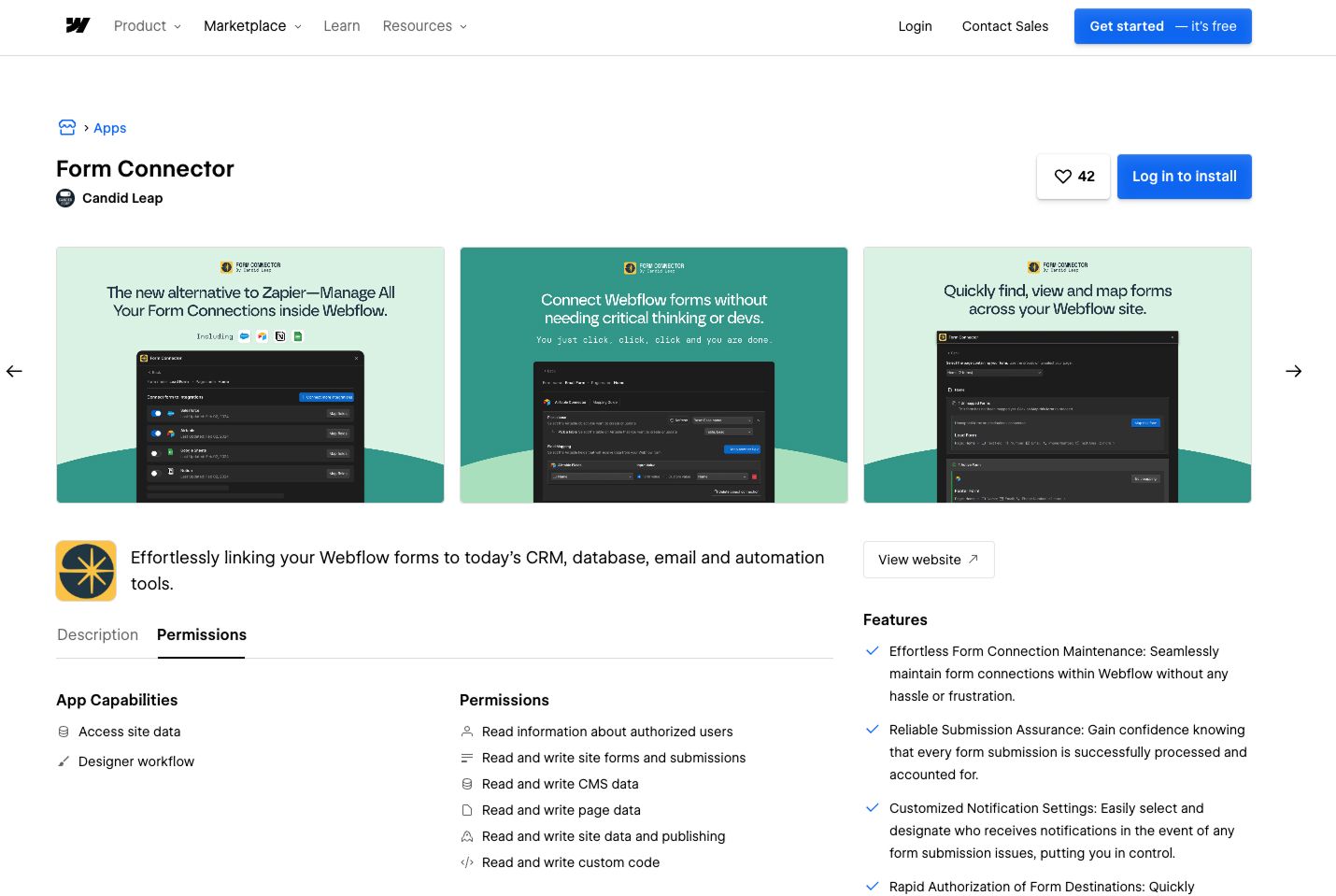
Supported platforms: Salesforce, Pardot (Salesforce Account Engagement), Marketing Cloud, HubSpot, Airtable, Notion, Snowflake.
If HubSpot is your CRM, we've covered that separately; read our Webflow HubSpot Integration guide.
What's included:
- Built-in submission log so you can see what was sent
- Error notifications when submissions fail (no silent failures)
- Free plan and Pro plan ($30/month) do not include Salesforce; Salesforce requires the Premium plan at $150/month (or $1,500/year)
Best for: Teams that want everything in one place and don't want to manage a separate automation tool. The free plan works for lower-volume sites; the jump to $300/month is steep, so check your volume first.
Option B: Zapier or Make
Zapier and Make connect Webflow form submissions to Salesforce via trigger-action workflows. When someone submits a form, the tool picks it up and creates or updates a record in Salesforce.
What you can do:
- Write to any Salesforce object (Leads, Contacts, Accounts, custom objects)
- Capture UTM parameters by adding hidden fields to your Webflow form, populated with JavaScript from URL parameters
- Set up multi-step Zaps to create a Contact and an Opportunity in the same workflow
- Use filters and conditional logic
Pricing: Both tools charge based on tasks (Zapier) or operations (Make). A moderate-volume site can stay on a free or low-tier plan. High-volume sites will see costs scale.
The main risk: Silent failures. If the Zap breaks or the Make scenario errors out, submissions can disappear with no trace. Set up error notifications from day one. Want to learn how to avoid this risk? Read our Webflow Zapier Integration guide.
When to use no-code tools: You need more than Leads, you want something you can manage without a developer, and you're comfortable with a third-party tool sitting between your site and your CRM.
Method 3: Custom API integration
For teams that need full control — deduplication, multi-object writes, bidirectional sync, or a complete attribution chain — a custom integration using the Salesforce REST API is the right call.
The typical setup:
- A serverless function (AWS Lambda, Cloudflare Workers, or similar) receives the Webflow form submission
- The function authenticates with Salesforce using OAuth 2.0 via a Connected App
- It runs upsert logic (create or update based on email/domain), writes to multiple objects, and returns a response to the form
What this unlocks:
- Create a Lead and a Campaign Member in one request
- Deduplicate against existing Contacts before creating a new record
- Capture the full UTM chain, page path, and referrer and write it to a custom attribution object
- Trigger Salesforce flows or process builders from the API call
- Handle errors explicitly and retry if needed
What it costs: Developer time upfront, then maintenance. There's no per-submission cost.
When to use this method: You have a developer available (or you're working with an agency), you're running a high-volume or high-stakes funnel, and you need guarantees that no-code tools can't provide.
Five things that break Webflow–Salesforce integrations
Even well-built integrations fail in predictable ways. Here's what to watch for before you go live.
Required fields in Salesforce that aren't on the form
If your Salesforce org has required fields on the Lead or Contact object that you're not capturing on the form, every submission will fail. Audit your required fields before building.
Validation rules blocking record creation
Salesforce validation rules run on every incoming record. A rule like "Phone must be 10 digits" will silently reject records where the phone number includes dashes or spaces. Review active validation rules and adjust your form's input formatting or the rules themselves.
No error monitoring
With Zapier and Make, errors don't surface unless you set them up to. Turn on error notifications in your automation tool and test with bad data to confirm they fire.
Lead assignment rules not running
Web-to-Lead respects assignment rules by default. API-based integrations may need to explicitly pass assignmentRuleHeader to trigger them. If leads are landing in a catch-all queue, this is usually why.
UTM parameters dropped at the form level
Hidden fields need to be pre-populated with JavaScript before the form loads. If the script runs after the form submission event, the values won't be captured. Test this in an incognito window with UTM parameters in the URL.
FAQs
Does Webflow have a native Salesforce integration?
No. There's no built-in connector. You'll use Web-to-Lead, a Webflow Marketplace app like Form Connector, a tool like Zapier or Make, or a custom API integration.
Is there a Webflow app for Salesforce integration?
Yes — Form Connector on the Webflow Marketplace. It connects Webflow forms to Salesforce, Pardot, HubSpot, Airtable, and more. Salesforce support requires the Premium plan at $150/month (or $1,500/year). There is a free plan, but it only covers HubSpot, Google Sheets, and Notion — not Salesforce.
What is the Webflow Optimize Salesforce connection?
It's an Enterprise-only feature for A/B testing and personalization — not lead capture. It lets you use Salesforce data to personalize Webflow pages. It's separate from anything to do with form submissions.
Do I need Salesforce API access for Zapier or Make?
Yes. Zapier and Make both use the Salesforce REST API. Salesforce Professional and Group editions don't always include API access. If yours doesn't, you'll need an add-on, an upgrade, or you'll need to use Web-to-Lead instead.
Can I send form data to Contacts instead of Leads?
Not with Web-to-Lead — that only creates Leads. For Contacts, use Form Connector, Zapier, Make, or a custom API integration.
How do I capture UTM parameters in Salesforce?
Add hidden fields to your Webflow form for each UTM parameter (utm_source, utm_medium, utm_campaign, etc.). Use JavaScript to read the values from the URL and populate the hidden fields on page load. Map those fields to corresponding fields in Salesforce.
Can I deduplicate records so I don't create duplicates?
Web-to-Lead doesn't deduplicate. Zapier and Make pass through whatever the form sends — deduplication logic has to be handled by Salesforce matching rules or a dedup tool. A custom API integration can handle upsert logic directly.
What happens if my Zapier Zap fails?
The submission is lost unless you have error handling set up. Always enable Zap error notifications and test failure scenarios before going live. Make has similar failure modes.
Working with a Webflow agency?
We build Webflow sites for B2B startups and handle integrations like this regularly — Web-to-Lead setups, Form Connector configuration, Zapier workflows, and custom API integrations for teams that need more.
If you're figuring out which approach fits your stack, get in touch and we'll point you in the right direction.
Share the Article

Uros is the brains behind the builds, turning Figma files into clean, scalable sites. He builds Webflow sites so smooth, you’ll think they coded themselves.
Outside the Webflow canvas, you’ll find him testing out new recipes, planning his next weekend escape, or deep in thought wondering why websites break at 3AM and not during office hours.
Table of Content


Kickstart your project today!
Book a call to discuss your goals and how we can help you reach them.
See Khod First on Google
More Integrations
 GoHighLevel Webflow Integration
GoHighLevel is an all-in-one CRM and marketing platform: pipelines, calendars, email and SMS, and automation workflows, popular with agencies and service businesses.
 Microsoft Clarity Webflow Integration
Microsoft Clarity shows you how visitors behave. We help you connect it to Webflow so you can see every click, scroll, and abandoned form to convert more of your traffic.
 Webflow Shopify Integration
Shopify runs the ecommerce backend. We help you connect it to Webflow, so your site has stronger product pages, clearer buying paths, and the right setup behind the scenes.
Your Next Deal Starts With Your Website
Most deals are won or lost before your sales team gets involved. Let's make sure your site is ready for that moment.
