
Resource Center / Development Guides / Webflow Schema Markup: DIY Guide to Structured Data & SEO
Webflow Schema Markup: DIY Guide to Structured Data & SEO


TL;DR
Google says Rotten Tomatoes measured a 25% higher click-through rate on pages with structured data. Webflow schema markup now has its own field in Page settings, on static and CMS Collection pages, so you can paste JSON-LD or have Webflow AI draft it without custom code.
FAQ rich results now show only for government and health sites, and HowTo rich results are gone. Article, Product, Event and Breadcrumb markup still change how a listing looks.
Key takeaways:
- Use the JSON-LD schema field for page-level JSON-LD; keep Organization and WebSite markup in Site settings custom code
- On CMS templates, bind fields so every item gets its own values
- Mark up only what the page shows
- Validate with Google's Rich Results Test before and after publishing
Webflow schema markup is the JSON-LD you add to a page so Google knows what the page is: an article, a product, an event or a business. Webflow now has a JSON-LD schema field in Page settings, so you can paste JSON-LD or have Webflow AI draft it without touching custom code. This guide covers both methods on static and CMS pages, gives copy-ready JSON-LD for each common type, and flags which rich results Google still shows in 2027.
What Is Schema Markup (Structured Data)?
Schema markup is a standardized way to label elements on your website so that search engines can better understand the content. It’s invisible to users but highly visible to crawlers like Googlebot.
The markup follows a vocabulary defined by Schema.org, and it's commonly implemented using JSON-LD (JavaScript Object Notation for Linked Data), which sits inside a <script type="application/ld+json"> tag in your page’s head or body.
For example, if you publish a blog post, schema lets you define:
- That the page is an Article
- The headline is the blog title
- The author is a Person
- The datePublished is a specific ISO date
This added context helps search engines render rich results and understand how your content should be indexed.
Schema can describe nearly any type of content: articles, products, reviews, FAQs, people, organizations, events, and more. Each type has required and optional properties.
In Webflow, page-level schema now goes in the JSON-LD schema field, in the Schema markup section of Page settings. It works on static pages and on CMS Collection template pages, and it needs a paid Site plan or a paid Workspace, according to Webflow's help article. Markup that belongs on every page, such as Organization and WebSite, still goes in Site settings custom code.
Why Schema Markup Matters for SEO
Schema markup doesn’t directly improve your rankings, but it increases the visibility and engagement of your search listings, especially in competitive SERPs.
1. Unlocks rich results
Schema markup enables enhanced search features like:
- Star ratings
- Price and availability for products
- FAQ dropdowns
- Event dates and locations
- Author and publish dates for articles
These additions make your listing stand out, which can raise click-through rate. In a case study Google cites, Rotten Tomatoes measured a 25% higher click-through rate on pages with structured data, per Google's introduction to structured data.
Some of those results have narrowed. Since August 2023, Google shows FAQ rich results only for well-known government and health sites, and it has stopped showing HowTo rich results, per its announcement of the change. Review stars that a business adds about itself (on LocalBusiness or Organization markup) haven't shown since 2019. The markup is still valid and still helps Google read the page. It just won't change how most listings look.
2. Enhances search engine understanding
Schema gives Google explicit context about the content:
- Article or blog post?
- Product or service page?
- Local business or organization?
The clearer your markup, the easier it is for Google to categorize and serve your content in the right place.
3. Future-proofs your SEO
Google's guidance on AI features in Search says a page needs no special markup to appear in AI Overviews. Structured data still spells out the facts that answers depend on, such as prices, authors and dates, as long as it matches what the page shows.
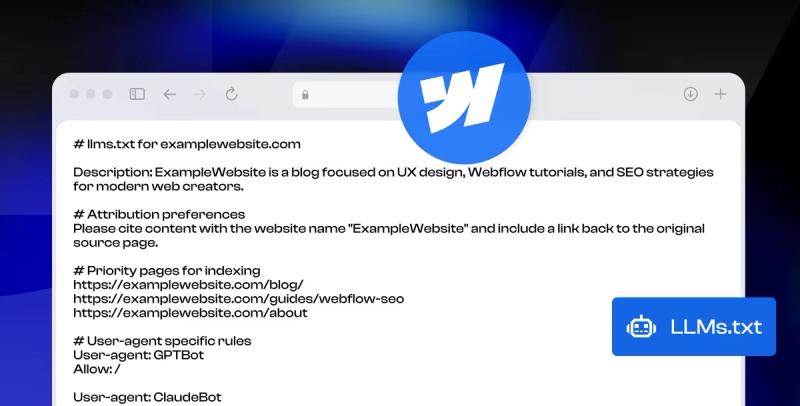
To further improve AI visibility, Webflow’s new llms.txt feature lets you provide a curated map of your site for large language models – another strategy covered in our guide.
4. Increases trust and conversions
Rich snippets build credibility. Seeing your product price, rating, or business info in the search result creates confidence before users even land on your page.
In short, schema markup doesn’t replace foundational SEO, but it adds to your visibility, especially when paired with high-quality content and strong internal linking.
Common Schema Types for Webflow Websites
Different types of schema markup serve different content formats. Selecting the correct type is key to getting eligible for rich results.

Article / BlogPosting
Use this for blog posts, news updates, and educational guides.
Properties to include:
- headline
- image
- author
- datePublished
- publisher
Best used on CMS blog templates. Can be implemented dynamically using Webflow’s embed component and CMS fields.
Example:
WebPage / WebSite
For general site context. Use WebPage on static pages and WebSite sitewide.
Common properties:
- name
- description
- url
- inLanguage
Example:
Product
Best for ecommerce or feature landing pages.
Important properties:
- name
- image
- description
- offers (price, availability)
- aggregateRating
Example:
FAQPage
Used when you have a clearly formatted question-and-answer section on the page.
Each Q&A pair must be visible on the page. Google limits FAQ rich results to government and health sites, so for most Webflow sites this markup helps machines read the page without changing the listing.
Example:

LocalBusiness / Organization
Used on About or Contact pages for company identity and NAP (Name, Address, Phone).
Can include:
- name
- address
- telephone
- openingHours
- sameAs (social links)
Example:

Review / AggregateRating
Can be embedded in Product, Service, or standalone Review pages.
Used to generate star ratings in search listings. Ratings on Product, Recipe or Software pages can still show stars. Ratings a business publishes about itself on LocalBusiness or Organization markup won't.
Example:

Event
For webinars, conferences, and community events.
Fields include:
- name
- startDate / endDate
- location or eventAttendanceMode
Example:
HowTo
Structured markup for tutorials or guides with steps.
To qualify, steps must be clear and sequential. Google no longer shows HowTo rich results, so treat this markup as optional context for other parsers and AI tools.
Example:
Choosing the right schema type and filling in its key properties makes your content eligible for visual enhancements in search. Webflow supports every type above through the JSON-LD schema field or custom code. Other types, such as Recipe, Course and JobPosting, are listed in full on Schema.org.

How we structure it on khod.io
This page ships one JSON-LD graph instead of separate blocks. Each node has an @id, and nodes point at each other by that id, so Google reads one connected description of the page, the article, the breadcrumb trail and the company behind it. Here is the shape, trimmed to the linking properties:
Two habits carry over to any Webflow site. Keep Organization and WebSite in Site settings custom code with fixed @id values, then reference those ids from each page's markup instead of repeating the company details on every page.
How to Add Schema Markup to Static Webflow Pages
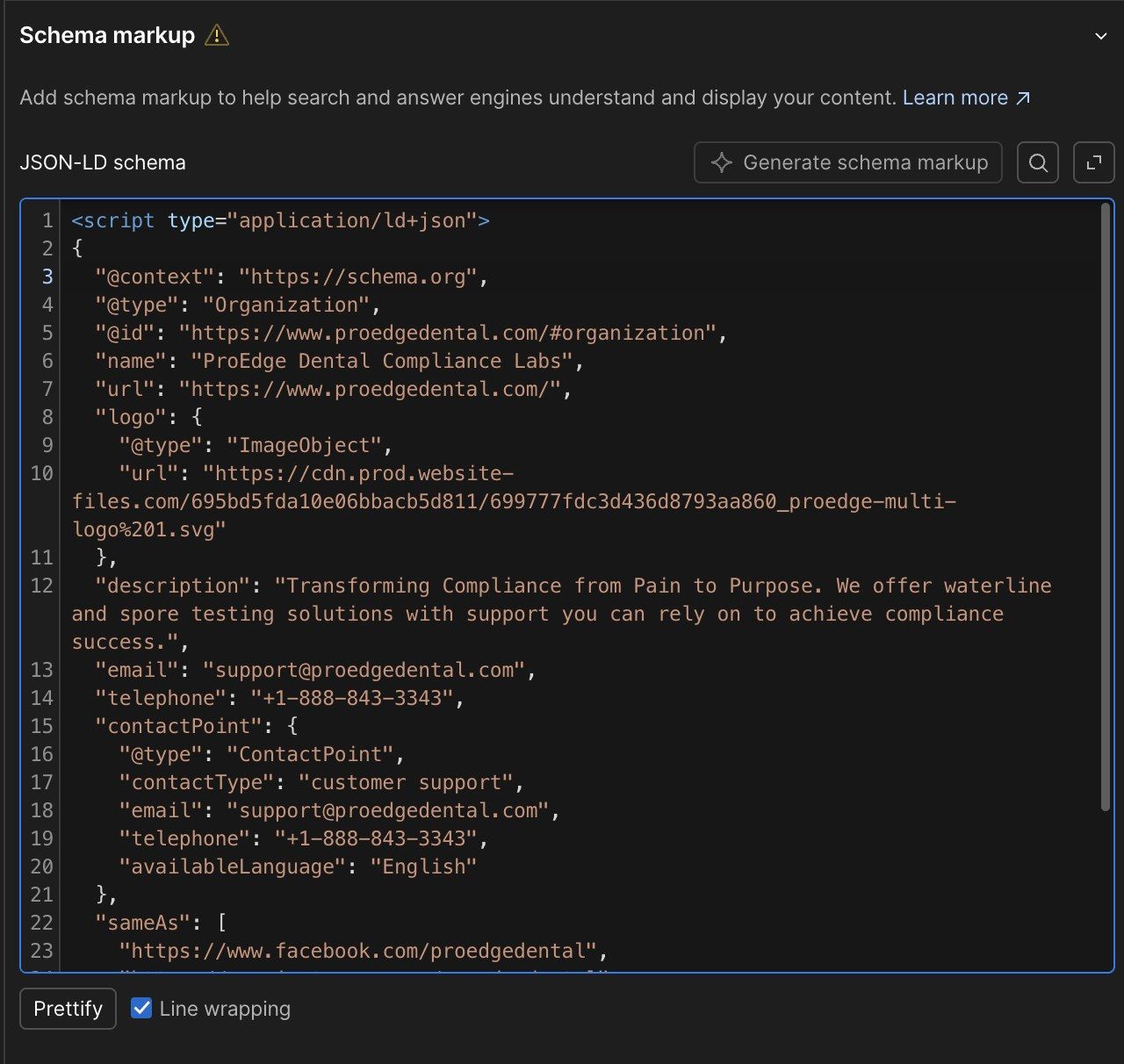
On static pages, schema no longer goes in the <head> custom code. Page settings has its own JSON-LD schema field: paste your markup there, or let Webflow AI draft it from the page content.
Step 1: Identify the schema type
Determine which schema type fits the page content. For example:
- Article schema for blog-like resources
- FAQPage schema for support pages with Q&A
- LocalBusiness schema for the contact page
Use Schema.org to verify required and optional fields.
Step 2: Generate the schema code
Click Generate schema markup above the JSON-LD schema field to have Webflow AI draft it from the page (Webflow AI must be on in Workspace settings). You can also use Merkle’s Schema Markup Generator, adapt one of the examples above, or write it by hand.
Step 3: Add the schema to the page
Review whatever you paste or generate before you publish: check that every value matches what the page shows.
In Webflow:
- Go to the Pages panel
- Hover over the static page and click the settings icon (⚙️)
- Scroll down to the Schema markup section, just above Custom code
- Paste your markup into the JSON-LD schema field, including the
<script type="application/ld+json">tag, or click Generate schema markup - Click Prettify to format the code so it is easier to review
- Click Save, then publish the site
Keep page-level schema out of the Custom code section underneath. One field per page holds the markup, so there is a single place to check and update it. Site-wide markup, such as Organization and WebSite, still belongs in Site settings custom code.
Step 4: Validate the implementation
Use Google’s Rich Results Test to verify that Google can detect and read your schema.
If you see errors, check for:
- Invalid JSON formatting (commas, quotes, brackets)
- Missing required fields
- Fields that don’t match visible content
Static schema gives you full control over what gets rendered, but it needs a manual update per page. If you want this implemented at scale without diverting internal resources, a specialized Webflow development company can handle it.
Use this method for landing pages, about pages, or one-off content pieces where automation isn’t needed.
Done right, structured data helps B2B websites earn rich results like star ratings, FAQ dropdowns, product specs, and more.
When Cryptoworth, a Web3 accounting platform, rebuilt their site in Webflow, preserving SEO performance was critical. We managed the Webflow-to-Webflow migration and ran a full technical SEO overhaul, including over 300 schema markup fixes across critical pages.
- Site health improved from 78 to 95%
- 440+ SEO-blocking errors resolved
- Organic keyword visibility increased from 1,200 to 1,800+ terms
- Traffic held steady after launch
How to Add Schema Markup to Webflow CMS Template Pages
For dynamic content like blog posts or product pages, add the schema to the CMS Collection template page so it applies to every item. The JSON-LD schema field works on template pages too: bind CMS fields so each item gets its own values. When Webflow AI generates the markup on a template, it adds the fields itself.
Step 1: Choose your CMS collection and schema type
Identify the CMS Collection (e.g., Blog Posts, Case Studies, Products) and select the appropriate schema type.
Example pairings:
- Blog Posts > BlogPosting
- Products > Product
- FAQs > FAQPage
Step 2: Plan field mappings
Map Webflow CMS fields to the schema properties.
- Name > headline
- Main Image > image
- Publish Date > datePublished
- Author > author.name
Step 3: Add the JSON-LD to the template
Open the Collection template's Page settings and use the JSON-LD schema field. If you need the markup inside the page instead, for example per item in a Collection List, use an Embed element:
- Navigate to the CMS Collection Page (e.g., Blog Post Template)
- Drag an Embed element into the page (usually before the footer)
- Paste your JSON-LD and insert dynamic fields with the Add Field button
Example:
Note: each {{ }} above stands for a CMS field inserted with Add Field. Webflow replaces it with that item's content on the live page.Step 4: Hide the embed (optional)
If needed, add a combo class like is-hidden and set the display to none so it doesn’t take up space.
Step 5: Publish and test
Publish the site and validate a live CMS page using Google’s Rich Results Test. Check that the schema appears with the right content values.
Using dynamic schema ensures every CMS item includes structured data without requiring manual edits. This approach is scalable and essential for blogs, ecommerce, or resource-heavy Webflow sites.

Testing and Validating Your Schema Markup
After adding schema markup to your Webflow pages, you need to test it to ensure search engines can read and use it properly.
Step 1: Use Google’s Rich Results Test
Go to Google’s Rich Results Test.
- Enter the page URL or paste the HTML code with your schema
- Click "Test URL" or "Test Code"
- Review the results for detected schema types and eligibility for rich results
What to look for:
- Green checkmarks for valid schema
- Warnings that indicate optional fields
- Errors that indicate critical issues (fix these immediately)
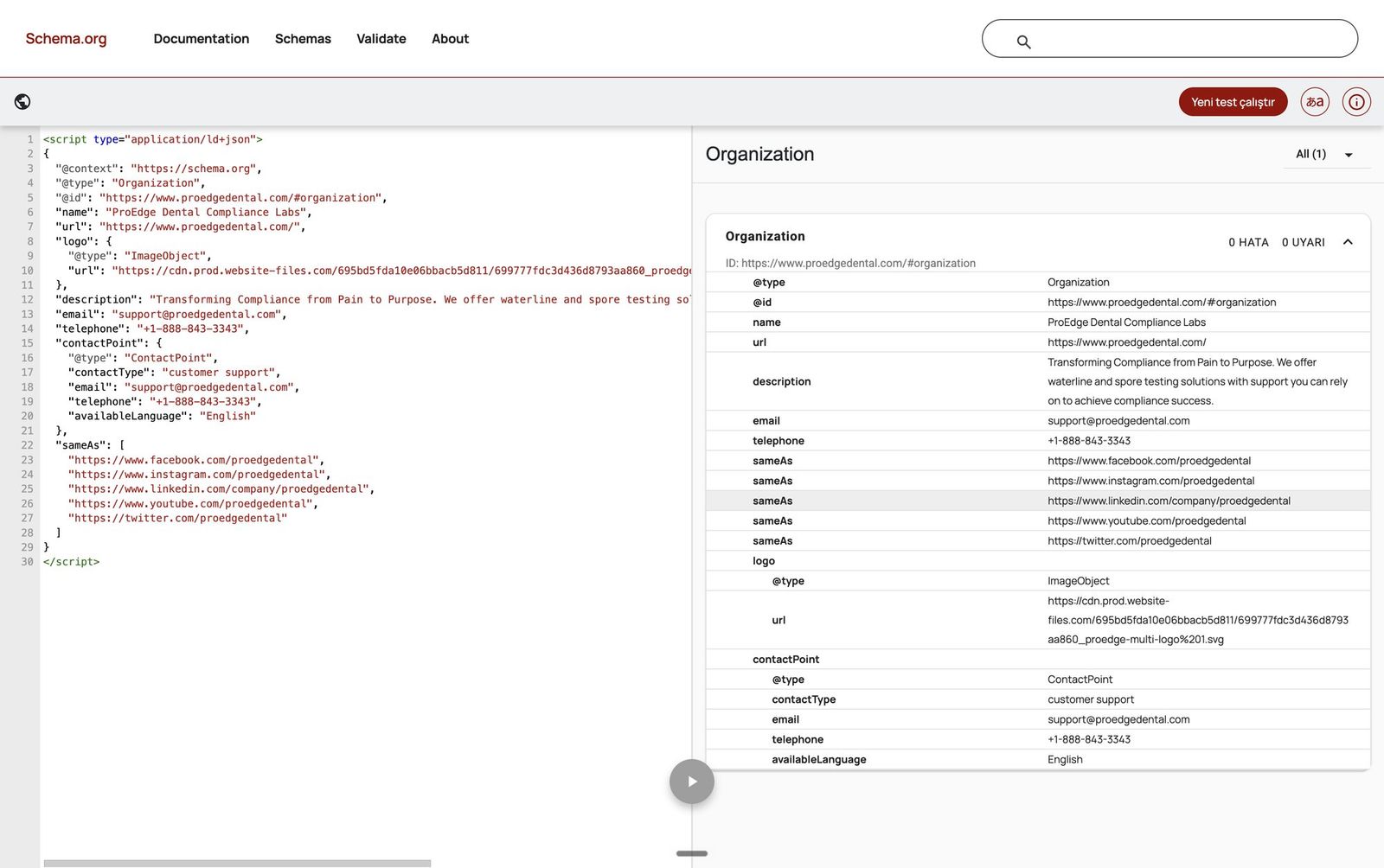
Step 2: Use the Schema Markup Validator
For a broader syntax check, use the Schema Markup Validator.
- It checks whether your JSON-LD follows Schema.org formatting rules
- Helpful for debugging code not flagged by Google's test
Step 3: Monitor in Google Search Console
Once your site is live and crawled:
- Go to Google Search Console
- Open the "Enhancements" tab
- Check for schema types like Article, FAQ, or Breadcrumb
- View how many items are valid, invalid, or pending review
Step 4: Check live search results
Sometimes the schema passes validation but doesn’t show in results. This can happen due to:
- Google’s algorithmic choices
- Page not having enough authority
- Schema not matching visible content
Be patient and keep the markup accurate. Google may take time to start displaying rich results.
Schema Markup Best Practices for Webflow
Follow these best practices to ensure your structured data is valid, scalable, and aligned with SEO guidelines.
Match schema to on-page content
Only mark up content that exists on the page and is visible to users. Google can issue a manual action for structured data that misrepresents the page, which removes its rich results.
Prefer JSON-LD format
JSON-LD is Google’s recommended format. It’s easier to manage, doesn’t interfere with page design, and can be inserted cleanly in head tags or embeds.
Use Microdata only when necessary
Use Microdata if you’re marking up multiple repeating elements within a Collection List (e.g., multiple reviews or FAQs on a single page). Otherwise, stick to JSON-LD.
Keep the markup up to date
When you update content, like changing a product price or adding new FAQs, update your schema to reflect those changes. Outdated structured data reduces trust and accuracy.
Avoid duplicate schemas
Don’t place multiple schema types of the same kind on a single page unless required. For instance, one Product schema per product page is sufficient.
Don’t over-optimize
Adding unnecessary schema types or stuffing irrelevant keywords into your markup won’t improve rankings. Stay relevant and minimal.
Validate regularly
Any time you update schema or publish new pages, validate with Google’s tools. Add this step to your pre-launch QA checklist.
Use CMS variables strategically
For dynamic schema, carefully map CMS fields to schema properties and handle missing values, such as an empty image or author field. Watch for double quotes inside plain text fields: a raw " in a bound value breaks the JSON for that item. A dedicated summary field you control is safer than binding long body text.
Good schema markup enhances your visibility without increasing design or dev complexity. Implement it intentionally and keep it clean to maximize SEO impact.
Frequently Asked Questions About Schema Markup in Webflow
Does Webflow support schema markup natively?
Yes. Page settings has a JSON-LD schema field for static and CMS Collection pages, where you paste JSON-LD or generate it with Webflow AI. It needs a paid Site plan or paid Workspace. Webflow doesn't add structured data for you, so you still choose and fill in the markup.
What’s the easiest way to generate schema?
Use Webflow AI's Generate schema markup button, or a tool like Merkle's Schema Markup Generator. Both output JSON-LD you can review and edit before publishing.
Can I use the same schema type on multiple pages?
Yes, as long as the content fits the schema. For example, every blog post can use BlogPosting schema if it follows the correct format.
Do I need to include every property?
No. Only required properties are mandatory. However, adding recommended fields improves your chances of getting rich results.
Does FAQ schema still show in Google?
Only for well-known government and health sites. Google narrowed FAQ rich results in August 2023. The markup is still valid and still describes the page for other tools, but it won't add dropdowns to most listings.
Will schema improve my rankings?
Not directly. Schema helps enhance how your content appears in search results, which can improve CTR and indirectly impact rankings.
How long does it take for rich results to show up?
There’s no fixed timeline. Google may take days or weeks to recognize and display your schema, depending on crawl frequency and page authority.
Can I test schema on unpublished pages?
Yes. Use the "Test Code" option in Google's Rich Results Test if the page isn’t published yet.
Should I use JSON-LD or Microdata?
Use JSON-LD for most cases. Microdata is useful for repeated items on a single page, but it’s harder to manage and less preferred by Google.
Share the Article


Kickstart your project today!
Book a call to discuss your goals and how we can help you reach them.
See Khod First on Google

Evgenii Tilipman is the founder of Khod, a digital agency helping B2B tech companies turn their websites into demand-generating assets.
He works closely with founders and GTM teams to define positioning, structure high-converting pages, and build scalable Webflow systems that support growth.
Before founding Khod, Evgenii led Webflow development at an agency and worked with Memberstack to build products for the Webflow community. He has since supported teams from seed to Series C across positioning, conversion, and Webflow development.
Outside of work, he's a husband, dog dad, and someone who treats his health and long hikes with the same consistency he brings to his projects.
Table of Content
Kickstart your project today!
Book a call to discuss your goals and how we can help you reach them.
See Khod First on Google
Explore More Development Guides
Technical SEO • Jul 30, 2025 • 6 min read
LLMs.txt Webflow Guide: Optimize Your Website for AI Search
Custom Code • Jul 2, 2025 • 7 min read
How to Build an Accessible Filter + Pagination in Webflow
Technical SEO • Jun 1, 2025 • 7 min read
How to Add and Customize Your robots.txt File in WebflowYour Next Deal Starts With Your Website
Most deals are won or lost before your sales team gets involved. Let's make sure your site is ready for that moment.
