
Resource Center / Development Guides / How to Add and Customize Your robots.txt File in Webflow
How to Add and Customize Your robots.txt File in Webflow

TL;DR
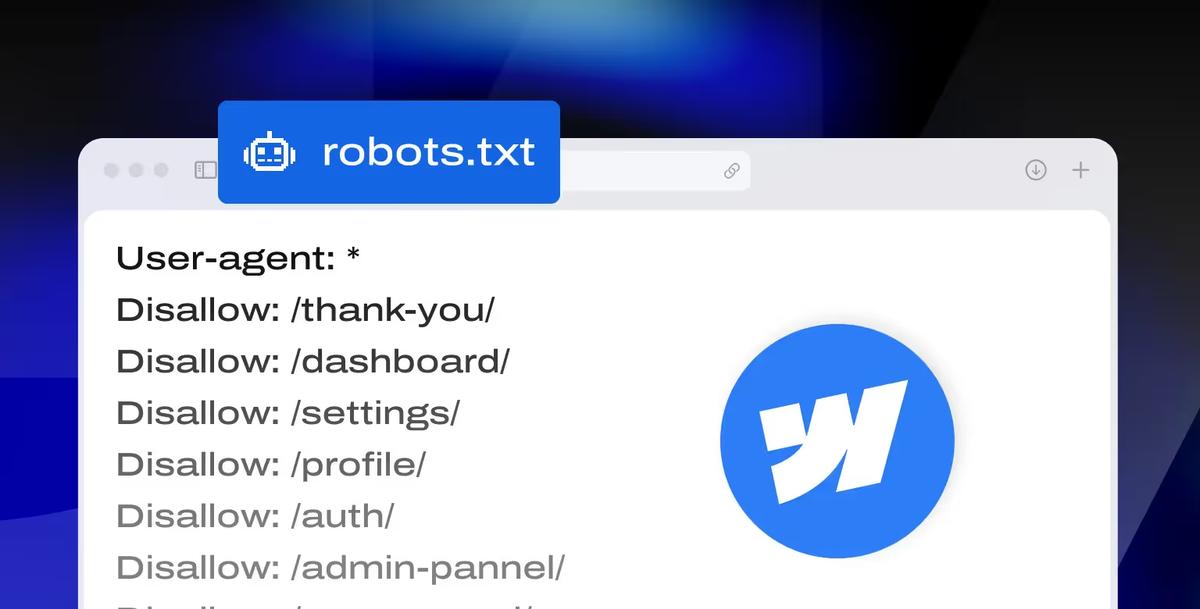
Webflow generates a robots.txt for every published site, and you can replace it in Site settings > SEO > Indexing on a paid Site plan. This guide covers the syntax, the rules worth adding, how to block AI crawlers such as GPTBot and ClaudeBot, and how to fix the errors Search Console reports.
Key takeaways:
- Robots.txt controls crawling, not indexing; use noindex to keep a page out of Google
- Block AI training bots (GPTBot, ClaudeBot, Google-Extended) and keep AI search bots (OAI-SearchBot, Claude-SearchBot, PerplexityBot) if you want to stay in AI answers
- A bot with its own group ignores the * rules, so repeat the rules you still want
- Check the result in Search Console's robots.txt report after publishing
Introduction
In Webflow, managing your robots.txt file is straightforward, but often overlooked. By default, Webflow auto-generates a basic robots.txt for your published site. But for those with more advanced SEO needs, or even just a desire to keep unnecessary pages out of Google’s index, customizing this file becomes one of the main priorities.
Whether you're building a simple portfolio or managing a large-scale content hub, knowing how to correctly use robots.txt in Webflow can help you:
- Control what search engines crawl
- Prevent indexing of thin or duplicate content
- Ensure private or staging pages stay private
Why does this matter? Because how your site gets crawled can directly impact how quickly (and accurately) your pages appear in search. A misconfigured robots.txt can unintentionally block important content, waste crawl budget, or leave sensitive pages exposed to search engines.
In this guide, we’ll cover everything from beginner steps to advanced strategies, tailored specifically for Webflow-hosted sites. If you ever need help beyond this tutorial, our SEO agency for tech startups can help you implement the right setup for your project.
What is robots.txt?
A robots.txt file is a plain text file that lives at the root of your website and tells search engine bots which parts of your site they can and cannot crawl. While it doesn’t directly impact rankings, it plays a crucial role in crawl efficiency, helping search engines prioritize the most valuable content.
Finding, Editing, and Testing Your robots.txt in Webflow (Beginner Steps)
Managing your robots.txt file in Webflow starts with understanding where to find it, how to modify it, and how to ensure it’s working as expected.
Step-by-Step Instructions:
Access Your SEO Settings:
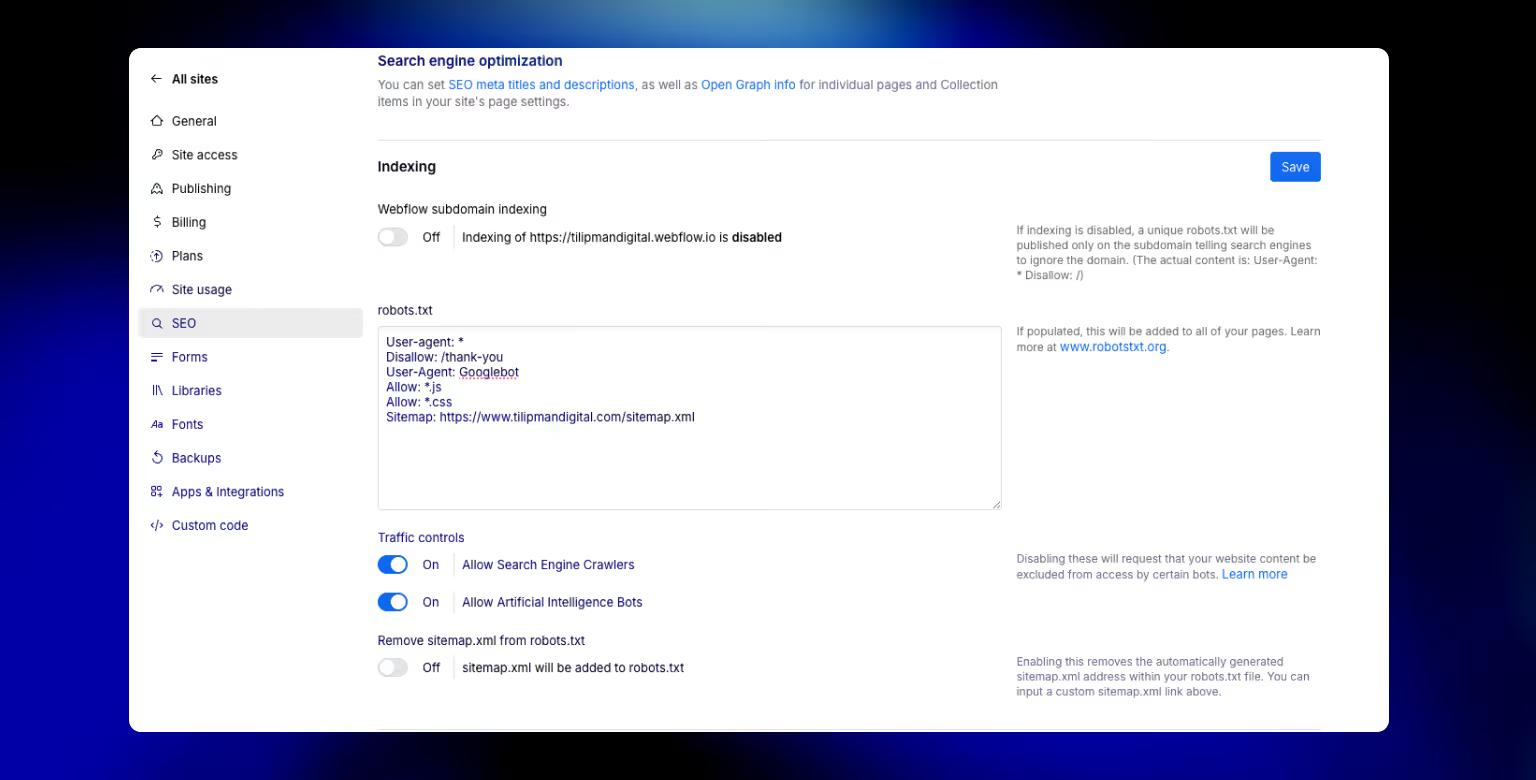
Go to Site settings > SEO tab > Indexing section.
Locate the Robots.txt Field
Scroll to the robots.txt field. If it’s not visible, ensure you have a paid site plan and a connected custom domain.
Then continue adding your directives using standard syntax:
This tells bots to avoid the /private-page/ but crawl everything else.
Save and Publish
Click Save Changes, then Publish your site. Your robots.txt will now be live at https://yourdomain.com/robots.txt.
Test the File
You can test the file by following the instructions:
- Open your published robots.txt in a browser
- Use the robots.txt report in Search Console (Settings > robots.txt) to see the version Google fetched and any parsing errors. It replaced the old robots.txt Tester in 2023.
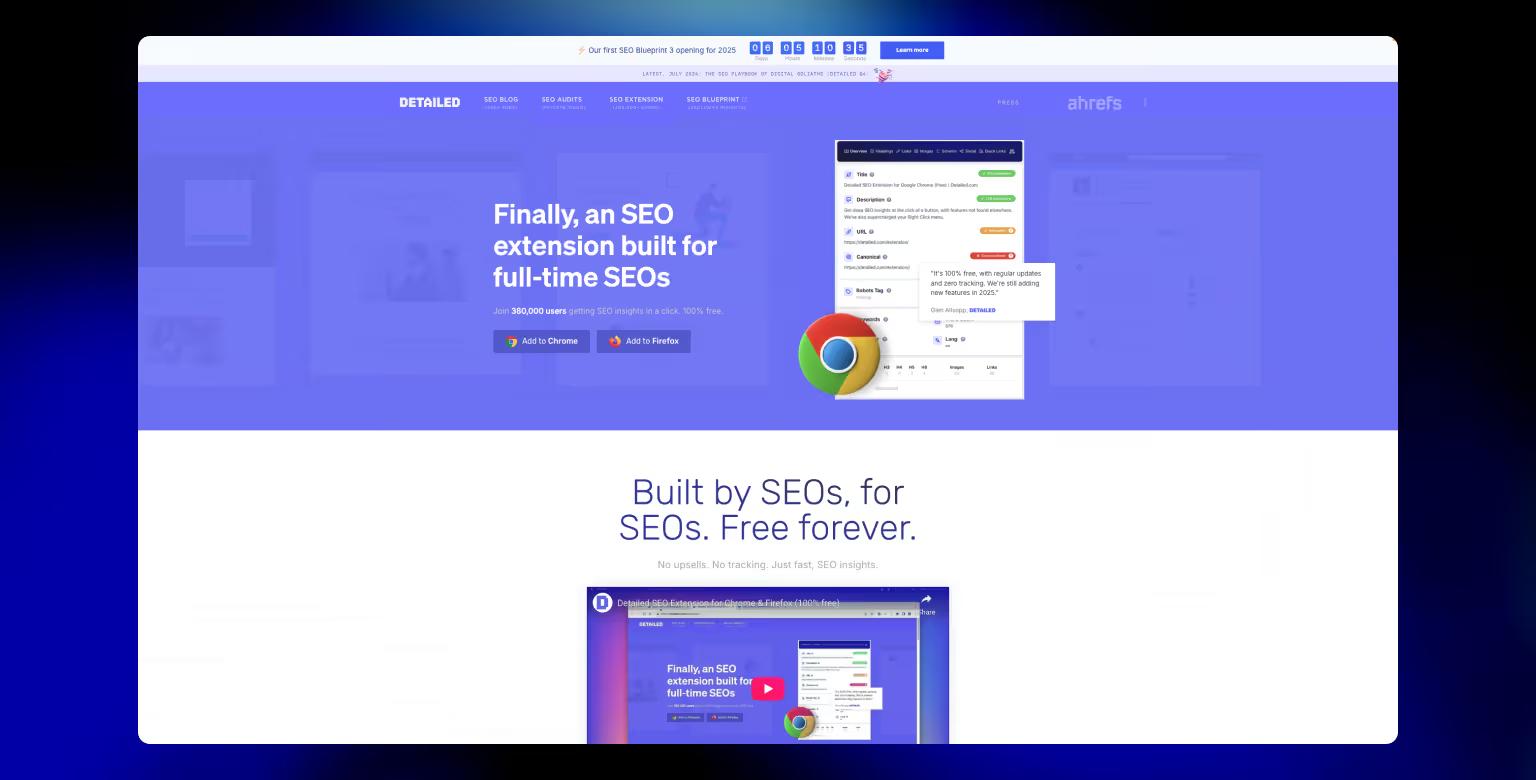
- Use Detailed SEO google chrome extension to test your robots.txt file
Notes for Beginners:
- Webflow requires a paid Site Plan for custom robots.txt usage.
- If you're using the webflow.io subdomain, toggle "Disable search engine indexing" in settings instead.
- Always republish your site after making changes.
Even for beginners, managing robots.txt in Webflow can be a low-effort, high-impact SEO move. Here's a video of Google staff giving a detailed robots.txt overview:
Advanced Use Cases & Troubleshooting (Technical SEO)
Beyond basic crawl instructions, robots.txt can be a strategic SEO tool, especially for Webflow users managing large content hubs, staging environments, or multilingual sites.
Here are a few advanced use cases:
Blocking Specific Crawlers
If you're seeing aggressive bot traffic (e.g. Ahrefs, Semrush), you can block them directly:
Use this sparingly, as blocking search engine bots like Googlebot or Bingbot can remove you from their index. Yoast keeps a list of the most common user agents in its robots.txt guide. AI crawlers have their own tokens, covered in the next section.
Fine-Tuning CMS Page Crawling
Webflow doesn’t let you exclude individual CMS items from sitemaps. But with robots.txt, you can prevent crawl access:
Combine this with page-level noindex meta tags for maximum control.
Managing Crawl Budget
If you're publishing lots of utility pages (thank-you pages, filters, internal tools), disallow those paths so Google focuses on what matters:
Handling Multilingual or Multi-domain Sites
If you use hreflang or reverse proxies, you may want to:
- Add multiple Sitemap: entries manually
- Block region-specific subfolders
- Customize robots.txt for staging vs. production
Common Troubleshooting Tips:
- "robots.txt not found": Make sure you’re on a paid plan, the domain is connected, and the site is published.
- Rules not updating: Save your changes and re-publish. Some users report needing to trigger a full site publish.
- Resources blocked: Don’t block CSS, JS, or image folders. Google needs those to render your site.
Takeaway: robots.txt can do a lot, but it’s only one layer. Combine it with canonical tags, structured internal linking, and clean sitemaps for best results.
How to Block AI Crawlers in Webflow (GPTBot, ClaudeBot and Others)
AI companies crawl the web for two different jobs: collecting text to train models, and fetching pages to answer a user's question with a link back to you. Each job has its own user agent, so robots.txt lets you refuse one and allow the other. Blocking the training bots keeps your content out of future models. Blocking the search bots removes you from AI answers, which is a traffic channel for most B2B sites.
The AI user agents that matter
- OpenAI:
GPTBotcollects training data,OAI-SearchBotbuilds ChatGPT search, andChatGPT-Userfetches a page when someone asks ChatGPT to. OpenAI says sites that block OAI-SearchBot won't be shown in ChatGPT search answers (OpenAI crawler docs). - Anthropic:
ClaudeBotis for training,Claude-SearchBotfor search, andClaude-Userfor fetches a user asks for. Blocking one doesn't block the others (Anthropic's crawler policy). - Google:
Google-Extendedcontrols whether Gemini can train on or ground answers with your content. It has no separate crawler, and it doesn't remove you from Search or AI Overviews, which run on Googlebot (Google's crawler list). - Perplexity:
PerplexityBotindexes pages for Perplexity answers.Perplexity-Userfetches pages for a user's question, and Perplexity says it generally ignores robots.txt because a person asked for the page (Perplexity bot docs). - Others:
Applebot-Extendedcontrols Apple's AI training, andCCBotis Common Crawl, whose public dataset many models train on.
Option 1: Block training, keep AI search
This is the setup most B2B sites want. Your pages can still be cited in ChatGPT, Claude and Perplexity answers, but they're not collected for training. Paste it into the robots.txt field in Site settings > SEO > Indexing, then publish:
Option 2: Block every AI crawler
Use this only if no AI tool should read the site at all, for example a paid content library. You'll disappear from AI answers that link to sources. A user agent can share a group with others, so one Disallow covers the whole list:
The group rule that catches people out
A crawler follows only the most specific group that names it. Once a bot has its own group, it ignores the User-agent: * rules completely. We found this in khod.io's own robots.txt: Allow: / groups for GPTBot, ClaudeBot and PerplexityBot meant those bots could crawl the thank-you and admin paths that every other bot was told to skip. If you give a bot its own group, repeat the rules you still want inside it:
What robots.txt can't do
Robots.txt is a request. OpenAI, Anthropic, Google and Perplexity document that their crawlers follow it, but nothing forces a crawler to comply, and user-triggered fetchers may not. To actually stop unwanted bots, block them at the network level, for example with bot rules in a CDN or firewall in front of the site. And blocking a crawler today doesn't remove content it already collected.
To check what AI tools say about you once crawlers can reach the site, track a fixed set of prompts over time. Our guide to answer engine optimization covers how.
Best Practices: Dos and Don’ts for robots.txt in Webflow
Done right, robots.txt can be a helpful tool to fine-tune how your Webflow site is crawled. Done wrong, it can block your most important pages from ever getting indexed. Here’s how to stay on the right side of that line.
Dos for robots.txt:
Include your sitemap
Webflow adds this automatically, but if you’re using a custom Webflow sitemap, be sure to manually include it:
For example, we optimized the robots.txt file for our crypto client Cryptoworth by manually inserting their sitemap link and tightening crawl rules. This ensured Google indexed only the right pages.
Use clear, intentional rules
Stick to clean, specific directives and avoid guesswork. Each group should begin with User-agent: followed by Allow: or Disallow: directives.
Test everything before and after publishing
Use Search Console’s robots.txt report and the URL Inspection tool to make sure your setup works as expected.
Use it to complement other SEO signals
Think of robots.txt as one part of the system. Use it alongside canonical tags, meta noindex rules, internal linking, and sitemaps for best results.
Don’ts for robots txt:
Block essential resources
Never disallow folders that contain JS, CSS, or images needed for rendering. Googlebot uses those to understand how your site appears to users.
Assume robots.txt hides private content
It only prevents bots from crawling, it doesn’t prevent indexing if the URL is linked elsewhere. Use noindex tags and password protection for sensitive pages.
Create conflicting or duplicate rules
Double-check for typos, overlapping paths, or contradictory entries (e.g. Allow and Disallow for the same path under the same user-agent).
Forget to publish
Webflow won’t apply your new robots.txt until you hit Publish. Saving is not enough.
By following these dos and don’ts, you’ll make sure your robots.txt file helps your visibility in search.
Common Issues and Fixes
Even when you follow best practices, things can still go sideways. Here are some of the most common robots.txt issues Webflow users run into, and how to fix them.
"robots.txt not found"
This usually happens when:
- Your site is still on the free webflow.io domain
- You haven’t enabled a Site Plan or connected a custom domain
- You haven’t published your site since editing robots.txt
Fix: Make sure your site is live on a custom domain with an active Site Plan, and then publish it.
"Blocked by robots.txt" error in Search Console
This means a page Google tried to crawl is explicitly disallowed.
Fix: Open the robots.txt report in Search Console to confirm which version Google fetched, then find the rule that matches the page. Update or remove it, republish, then request a re-crawl with URL Inspection.
"Submitted URL blocked by robots.txt"
If you submit a sitemap that includes pages blocked by robots.txt, Search Console will flag this.
Fix: Either remove those URLs from your sitemap or update your robots.txt to allow crawling. When you change page URLs or remove pages, set up 301 redirects so visitors and search engines are automatically sent to the updated pages.
robots.txt won't update
If you’ve made changes but still see the old file at /robots.txt, it might be a caching issue or you forgot to publish.
Fix: Re-save the SEO settings and publish your site again. You can also try a hard refresh or test the file in incognito mode. If you encounter a redirect loop during crawling, follow our "Too Many Redirects" error guide to troubleshoot and resolve it.
Pages still showing in search despite being disallowed
Blocking a page in robots.txt stops crawling, but not indexing if Google already knows the URL.
Fix: Add a noindex tag to the page using Webflow’s page settings, and request removal in Search Console.
Not sure how to do that? We have written a guide outlining the Webflow Google Search Console integration.
By checking for these common issues regularly, you can avoid accidental visibility problems and keep your site crawl-friendly and SEO-healthy.
Common Questions and FAQs about robots.txt in Webflow
What does a robots.txt file contain?
A robots.txt file contains directives for search engine crawlers. Each group starts with a User-agent: line (e.g., * for all bots) and is followed by rules such as Disallow: or Allow:. Optionally, it can include a Sitemap: line to help bots discover all content.
Example:
Do I need a robots.txt file for SEO?
Not always, but it helps. While many smaller sites can go without it, having a well-structured robots.txt becomes more important as your site grows, especially when managing crawl budget, privacy, and multilingual content.
What happens if I don’t have a robots.txt file?
Nothing catastrophic. If no robots.txt exists, bots are allowed to crawl your entire site by default. It’s better to have one if you want to:
- Block non-essential or duplicate content
- Point crawlers to your sitemap
- Control indexing behavior on a site-wide level
Is robots.txt bad for SEO?
No. On its own, robots.txt is not bad for SEO, it’s a tool. And like with any other tools, problems arise only when it’s misconfigured. If you accidentally block important content (like your homepage or blog), then yes, it can hurt your visibility. But when used properly, it helps focus crawlers on the right content. To learn about more the tools you can use as part of Webflow SEO arsenal, read our article on debunking Webflow Misconceptions: Does Webflow Negatively Impact SEO?.
Why is robots.txt blocked?
If you see this message in Search Console, it usually means Googlebot was unable to fetch your robots.txt file. This could be due to:
- The file not being published (you forgot to hit "Publish")
- The site being hosted on the free webflow.io domain
- A temporary issue or server misconfiguration
How do I view my live robots.txt file in Webflow?
After publishing your site, go to https://yourdomain.com/robots.txt in any browser. If you’ve added custom rules in Site settings > SEO > Indexing, they’ll appear there.
Can I use wildcards or pattern matching in robots.txt?
Yes. Robots.txt supports basic wildcard usage. For example:
This would block all URLs that begin with /tags/.
Does Webflow automatically include my sitemap in robots.txt?
Yes. Webflow auto-appends the Sitemap: directive linking to your sitemap.xml as long as you haven’t disabled auto-generation in settings.
Can I use robots.txt to remove a page from Google?
Not reliably. Blocking a page in robots.txt will stop crawling, but not indexing. If Google already knows about the URL, it might still appear in search. Use the noindex meta tag instead, or Webflow’s built-in "exclude from search" toggle on a per-page basis.
Should I block GPTBot in Webflow?
Only if you don't want your content used to train OpenAI's models. Blocking GPTBot doesn't remove you from ChatGPT search; that is controlled by OAI-SearchBot. Add a User-agent: GPTBot group with Disallow: / in Site settings > SEO > Indexing and publish.
Does blocking Google-Extended remove my site from AI Overviews?
No. AI Overviews use the regular Googlebot crawl. Google-Extended only controls whether your content trains or grounds Gemini models outside Search.
Can I block a specific CMS item using robots.txt?
Not directly through Webflow’s UI. However, you can disallow its URL path manually in robots.txt like:
To be thorough, also apply a noindex tag on the CMS item via the page settings.
Conclusion
Managing your robots.txt file in Webflow might seem like a small detail, but it plays a meaningful role in your site’s SEO strategy. Whether you're launching a simple landing page or scaling a content-heavy product site, a well-structured robots.txt ensures that search engines focus on the content that matters most.
It controls crawl access, keeps utility pages out of the crawl, saves crawl budget and decides which AI crawlers can read your site. Robots.txt is your first line of direction for how bots interact with your Webflow site.
If you’re unsure about how to implement this effectively across a growing or complex site, our Webflow agency for SEO and CRO can help.
Now that you’ve got a full understanding of how robots.txt works in Webflow, you’re one step closer to a more performant, indexable, and search-ready website.
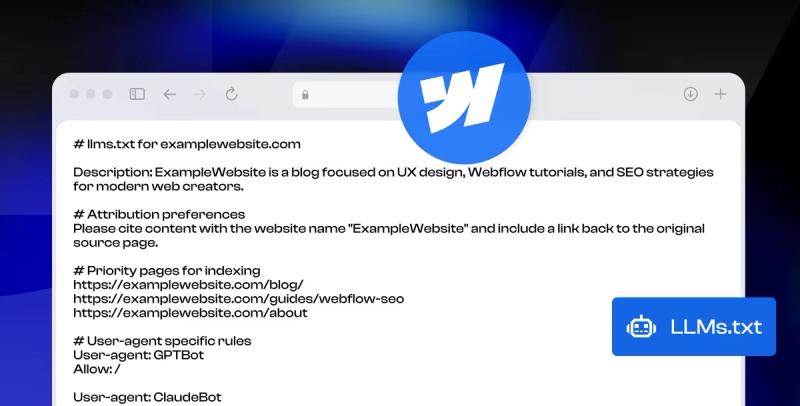
As a next step, consider the rise of AI-driven search, Webflow’s recent llms.txt update lets you guide AI models just as robots.txt guides traditional search engine bots.
Share the Article


Kickstart your project today!
Book a call to discuss your goals and how we can help you reach them.
See Khod First on Google

Evgenii Tilipman is the founder of Khod, a digital agency helping B2B tech companies turn their websites into demand-generating assets.
He works closely with founders and GTM teams to define positioning, structure high-converting pages, and build scalable Webflow systems that support growth.
Before founding Khod, Evgenii led Webflow development at an agency and worked with Memberstack to build products for the Webflow community. He has since supported teams from seed to Series C across positioning, conversion, and Webflow development.
Outside of work, he's a husband, dog dad, and someone who treats his health and long hikes with the same consistency he brings to his projects.
Table of Content
Kickstart your project today!
Book a call to discuss your goals and how we can help you reach them.
See Khod First on Google
Explore More Development Guides
Technical SEO • Jul 30, 2025 • 6 min read
LLMs.txt Webflow Guide: Optimize Your Website for AI Search
Technical SEO • Jul 26, 2025 • 9 min read
Webflow Schema Markup: DIY Guide to Structured Data & SEO
Custom Code • Jul 2, 2025 • 7 min read
How to Build an Accessible Filter + Pagination in WebflowYour Next Deal Starts With Your Website
Most deals are won or lost before your sales team gets involved. Let's make sure your site is ready for that moment.
