
Resource Center / Playbooks / How to Create Interactive Background Effects in Webflow Using Vanta.js
How to Create Interactive Background Effects in Webflow Using Vanta.js


TL;DR
Vanta.js lets you add animated, interactive background effects to Webflow with lightweight JavaScript and no heavy assets.
- Birds: Flocks that respond to mouse movement—great for visual energy and motion.
- Fog: Smooth, misty visuals for a mysterious or moody atmosphere.
- Clouds: Airplane-window-style floating clouds for a soft, airy look.
Each effect only requires a few lines of code, a target div, and the right script. You can also disable effects on mobile for performance.
Use our free Webflow clonable to apply these effects instantly—or follow this guide for full control and customization.
Introduction
Adding animated backgrounds to your Webflow site can create a more immersive experience, enhancing user engagement and visual appeal. Interactive background effects help websites stand out by adding dynamic movement, depth, and a sense of interaction. One of the best tools for achieving this is Vanta.js, a lightweight JavaScript library for WebGL-powered animated backgrounds.
There are multiple ways to animate your backgrounds, and we go over some examples of how to utilize the background change effects in Webflow in a seperate article, however this article is dedicated to exploring tha capabilities of Vanta.js.
In this guide, you'll learn how to integrate three of the most popular Vanta.js effects into Webflow. The effects we aim to teach you the implement of are:
- Birds – Animated flocks that move dynamically on mouse hover
- Fog – A smooth, somewhat mysterious mist effect
- Clouds – Floating cloud animations that make users feel like they are looking out of the window of an airplane
By the end of this guide, you’ll know how to set up and customize these effects in Webflow to create visually engaging pages.
What is Vanta.js?
Vanta.js is a lightweight JavaScript library designed to generate interactive background effects using WebGL. It offers a variety of different effects, each creating a unique atmosphere on your website.Besides the above mentioned effects, the library offers the following:
- Clouds 2 – Denser, more dramatic clouds for a heavier sky atmosphere.
- Waves – Rolling wave animations that give a liquid-like movement.
- Globe – A rotating wireframe globe, great for a futuristic feel.
- Net – A flexible net that bends and shifts based on user interaction.
- Cells – A floating cell structure with organic movement.
- Trunk – A dynamic branching structure that evolves over time.
- Topology – A shifting 3D topographical effect.
- Dots – A grid of dots that pulse and move based on settings.
- Rings – Concentric rings that create a ripple effect.
- Halo – A subtle halo glow that shifts dynamically.
Why Use Vanta.js in Webflow?
- Enhances visual engagement without requiring complex interactions
- Lightweight and optimized for performance
- Easy to integrate with Webflow’s existing elements
- Fully customizable for color, density, and speed
Unlike static images or simple gradients, Vanta.js effects are lightweight, interactive and adjust dynamically based on settings, making them a great choice for hero sections, landing pages, and immersive UI elements.
How to Add Vanta Birds Effect in Webflow
Step 1 – Add the Birds CDN of Vanta.js Library
- Open Webflow Designer and go to Page Settings.
- Scroll down to the Custom Code section.
- Paste the following scripts before
</body>: - Click Save and Publish your site.
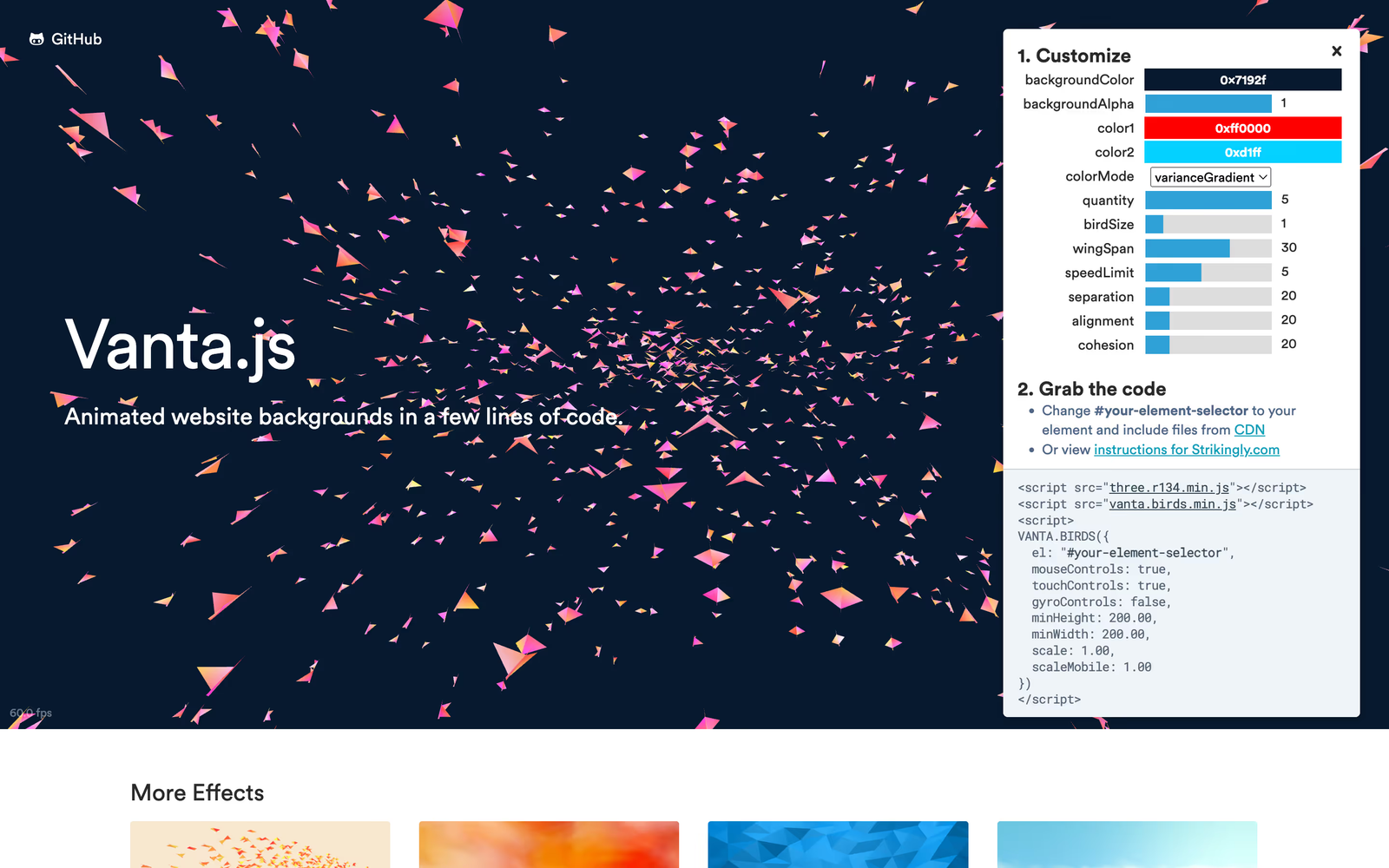
Step 2 – Create Target Element for the Effect
- Add a
divinside your Webflow section. - Assign it an ID:
vanta-birds. - Set the width and height to
100vwand100vh. - Set position to
absoluteandz-indexto-1.
Step 3 – Initialize Vanta Birds with JavaScript
Save and Publish your site to see the animated bird effect in action!
If you're looking to add this effect, but need a more visual representation of how to do so, this video may give you the aditional context you need.

How to Add Vanta Fog Effect in Webflow
Step 1 – Add the Fog CDN of Vanta.js Library
- Open Webflow Designer and go to Page Settings.
- Scroll down to the Custom Code section.
- Paste the following scripts before
</body>: - Click Save and Publish your site.
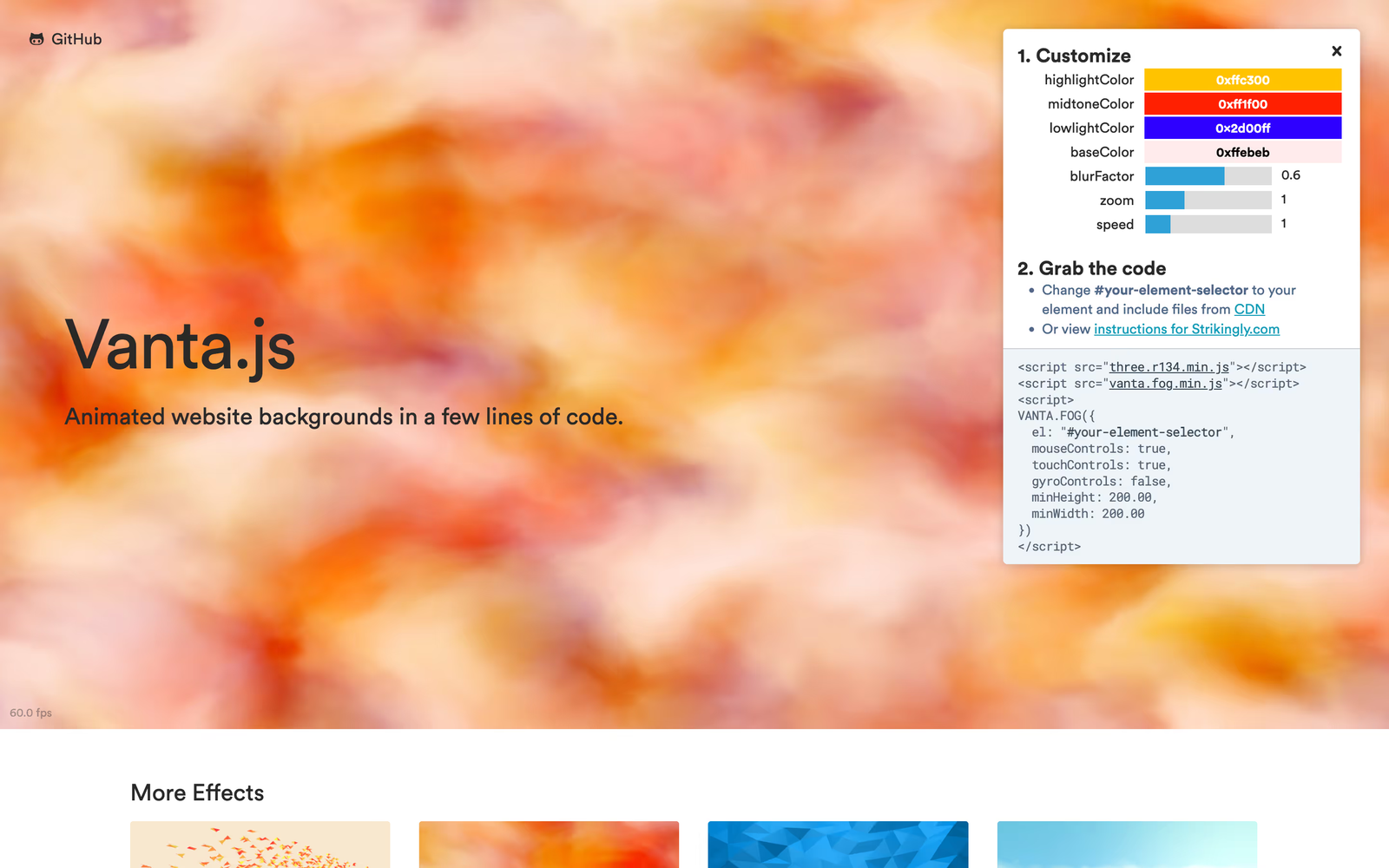
Step 2 – Create Target Element for the Effect
- Add a
divinside your Webflow section. - Assign it an ID:
vanta-fog. - Set the width and height to
100vwand100vh. - Set position to
absoluteandz-indexto-1.
Step 3 – Initialize Vanta Fog with JavaScript
Save and Publish your site to see the animated fog effect in action!
How to Add Vanta Cloud Effect in Webflow
Step 1 – Add the Cloud CDN of Vanta.js Library
- Open Webflow Designer and go to Page Settings.
- Scroll down to the Custom Code section.
- Paste the following scripts before
</body>: - Click Save and Publish your site.
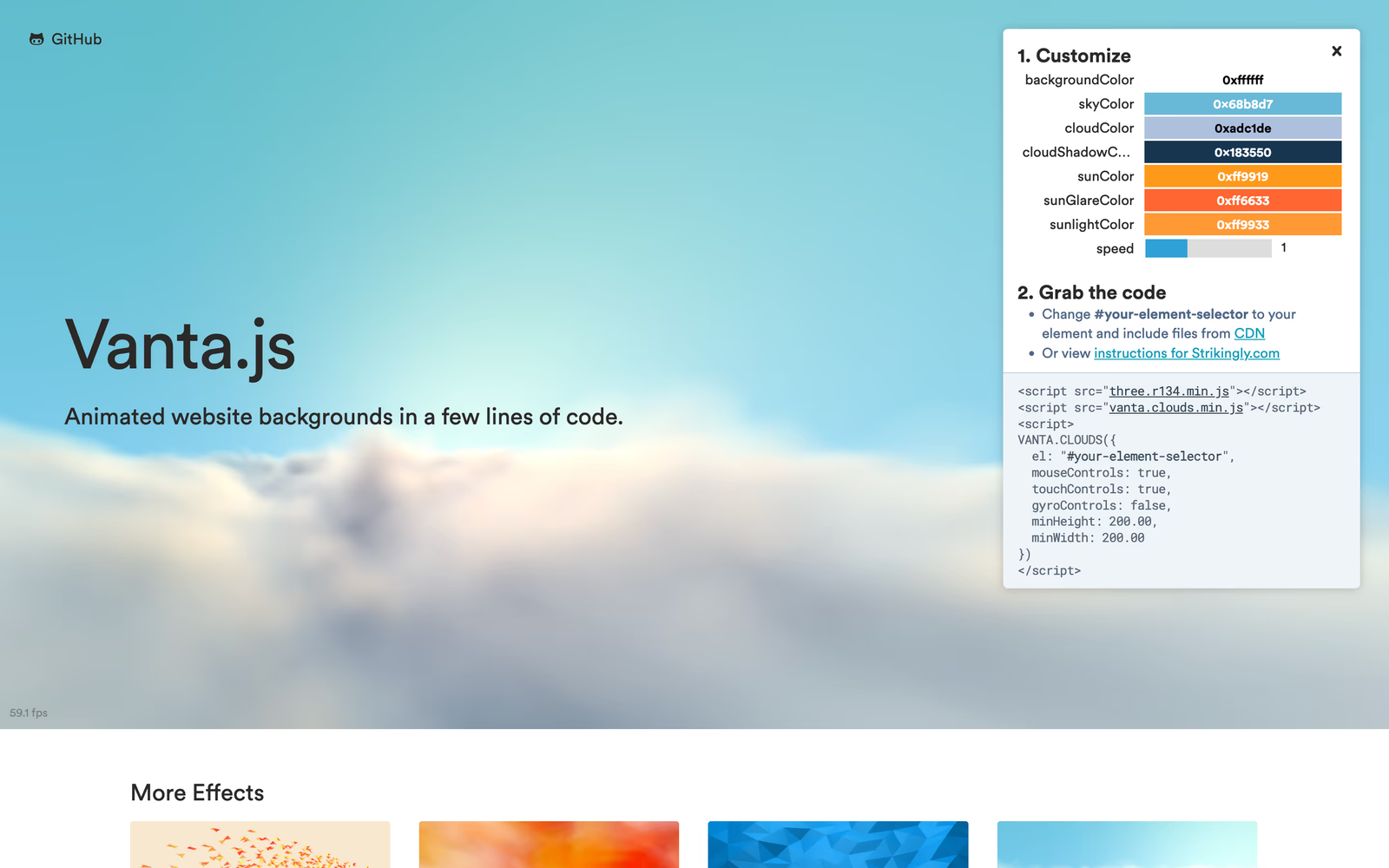
Step 2 – Create Target Element for the Effect
- Add a
divinside your Webflow section. - Assign it an ID:
vanta-clouds. - Set the width and height to
100vwand100vh. - Set position to
absoluteandz-indexto-1.
Step 3 – Initialize Vanta Clouds with JavaScript
Save and Publish your site to see the animated cloud effect in action!
Making the Effects Responsive
Since WebGL effects can be performance-intensive on mobile, consider disabling them for smaller screens:
This ensures better performance while maintaining interactivity on larger screens.
Advanced Enhancements (Optional)
Triggering Effects on Scroll
Use GSAP ScrollTrigger to dynamically change effect properties such as color as users scroll.
Combining Vanta.js with Webflow Interactions
Pair Vanta.js with Webflow’s interactions for text fade-ins, opacity changes, or other animations that complement the background effects.
Applying Vanta.js to Multiple Sections
Instead of limiting effects to one section, apply them to multiple elements to create a layered background experience by setting the animation to be initialized on either class or attribute instead of id.
Common Issues & Troubleshooting
- Effects not loading?Ensure the script is placed before
</body>and thedivID exists.Not all effects work on mobile devices. Set a background image or color as a fallback. - Performance issues?Reduce animation speed and disable effects on mobile devices.Some WebGL effects are slow on older computers.Don't use more than one or two in a single page!
- Content is hidden?Adjust
z-indexto ensure text and buttons remain visible above the effect.
Final Thoughts & Clonable
By following this guide, you're now able to implement Vanta.js in Webflow, helping you create interactive, visually rich backgrounds that boost engagement. While we have covered only 3 out of many effects, this guide should give you the know-how to implement other effects includign the problematic ones such as Vanta Waves.
In case the implementation seems too complex, or if you need custom Webflow development, our Webflow Development Agency can assist with implementing similar and even more advanced effects.
And if you want to implement these specific features instantly, you can grab our free Webflow clonable and apply Vanta.js effects to your projects in seconds!
Share the Article

Evgenii Tilipman is the founder of Khod, a digital agency helping B2B tech companies turn their websites into demand-generating assets.
He works closely with founders and GTM teams to define positioning, structure high-converting pages, and build scalable Webflow systems that support growth.
Before founding Khod, Evgenii led Webflow development at an agency and worked with Memberstack to build products for the Webflow community. He has since supported teams from seed to Series C across positioning, conversion, and Webflow development.
Outside of work, he's a husband, dog dad, and someone who treats his health and long hikes with the same consistency he brings to his projects.
Table of Content


Kickstart your project today!
Book a call to discuss your goals and how we can help you reach them.
See Khod First on Google
Explore More Playbooks
Technical SEO • Jul 30, 2025 • 6 min read
LLMs.txt Webflow Guide: Optimize Your Website for AI Search
Technical SEO • Jul 26, 2025 • 9 min read
Webflow Schema Markup: DIY Guide to Structured Data & SEO
Custom Code • Jul 2, 2025 • 7 min read
How to Build an Accessible Filter + Pagination in WebflowYour Next Deal Starts With Your Website
Most deals are won or lost before your sales team gets involved. Let's make sure your site is ready for that moment.
